To make sure your test-takers have a smooth experience, design a clear and well-structured answer form. Focus on neat rows and columns that align perfectly with the answers to be filled in. Make sure the circles or options are large enough to avoid confusion but not too big to waste space. This approach will also help ensure accurate scanning if the form is processed electronically.
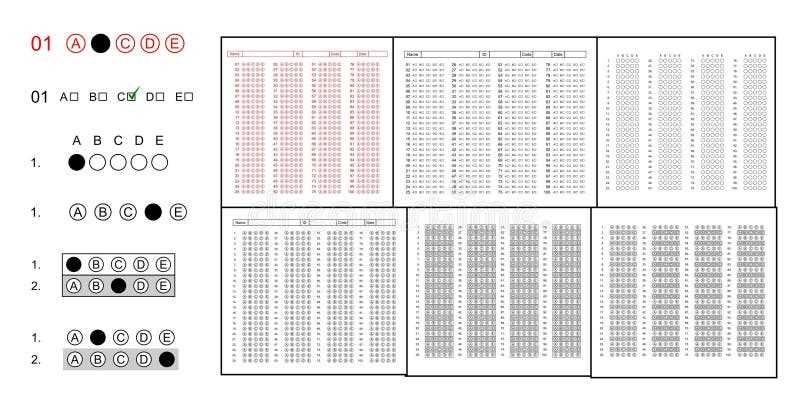
Consider using a grid layout for organizing answers. For example, if you’re designing a multiple-choice test, keep the answer choices aligned in a consistent pattern. This avoids errors during marking and saves time for both students and teachers. You can also add a field for student identification to streamline the process further, keeping it professional and straightforward.
If you’re designing for automated grading systems, ensure the spacing between options is standardized. This is crucial for machines to read selections correctly. Avoid using small or irregular symbols, as they can confuse scanning software. Test your form with a scanner before finalizing it to ensure compatibility and accuracy.
How to Create a Clear Answer Grid for Exams
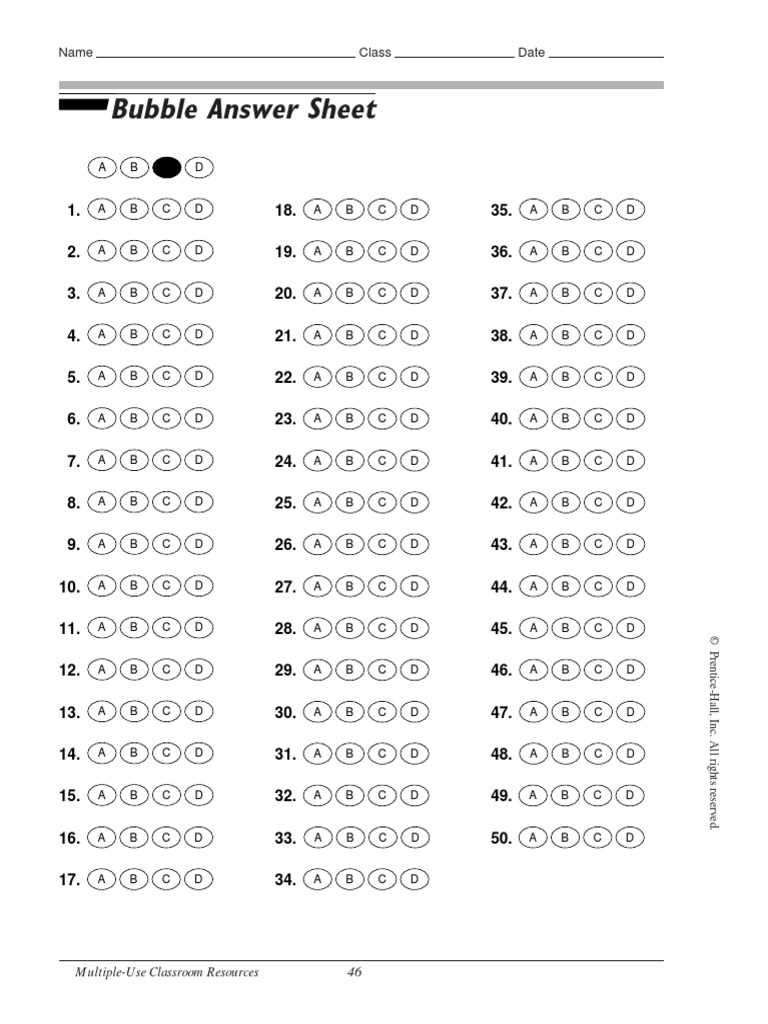
Begin by setting up a clean, well-organized structure for the answer grid. Use consistent spacing between answer circles to ensure clarity for both students and automated systems. Standardize the size of each option to avoid confusion. If the form is being used for a multiple-choice test, ensure there are no overlaps between answer choices.
Choose the right tool for designing your form. Software like Microsoft Word, Google Docs, or specialized form design tools can help create a structured document with aligned rows and columns. Keep the text legible, and if you’re including instructions, ensure they are clearly separated from the answer section to avoid mistakes.
For ease of use, consider adding a numbering system to the answer grid. Numbering the answer choices (for example, 1, 2, 3) will help the students follow the pattern without confusion. Make sure the font size is large enough for comfortable reading, especially for younger students or those with visual impairments.
If you’re using a scanner to grade responses, test the grid format to ensure the system can accurately read the selected answers. Use a solid color for the fill of the answer options to avoid errors during optical scanning. Once tested, print a sample form to confirm everything aligns perfectly before printing large quantities for your test sessions.
How to Design a Customizable Printable Answer Form
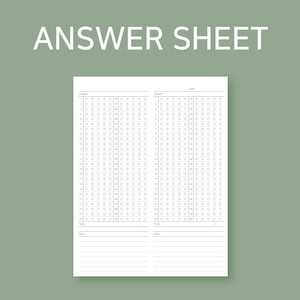
Start by choosing a program that allows easy customization, such as Microsoft Word or Google Docs. These tools offer basic features to create grids, adjust spacing, and fine-tune the alignment of options. The first step is to set up a table with rows for each question and columns for answer choices. Make sure each answer space is large enough to accommodate various marking styles, such as pencils or markers.
Adjust the layout based on your requirements. For multiple-choice tests, ensure that the answer boxes are wide enough for clear marking but not too large to waste paper. For fill-in-the-blank or true/false formats, the cells should be shaped to match the size of the expected answer. Use bold lines to separate sections, making the document easy to navigate at a glance.
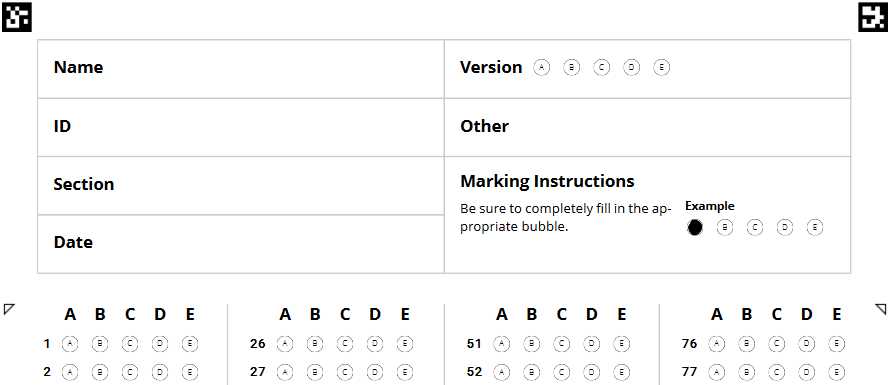
To allow for multiple test versions, consider including space for different identifiers such as a version number or student ID at the top of the form. This can be especially helpful when distributing various test forms to prevent cheating. Ensure that these fields are clearly labeled and not too close to the answer grid to avoid confusion.
- Use clear, readable fonts for instructions and answer labels.
- Ensure the spacing between answer options is consistent for easy marking.
- Keep the form size standard (e.g., A4 or letter size) to ensure compatibility with scanners.
Once your layout is complete, test it by printing a sample form. After printing, check for any misalignments or overcrowded sections. Make sure that the printed form allows for accurate markings and that the text is legible. After finalizing the design, save the document for future use, making it easy to edit and print for future exams.