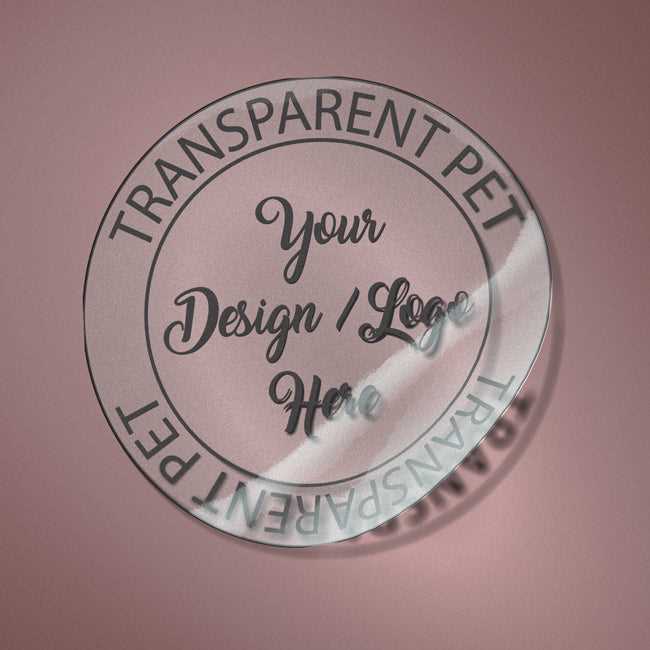
Start by selecting the right design software for creating your artwork. Popular options include Adobe Illustrator or free alternatives like Canva, which allow you to work with transparent backgrounds. Make sure the design is sized to fit the material you plan to use, typically in A4 or letter format.
Next, choose the right type of material. Clear adhesive sheets are available in a variety of finishes, such as matte or gloss. Matte sheets are ideal for a subtle, non-reflective look, while gloss finishes can make your designs stand out with a shiny, professional finish.
Once your design is ready, print it using an inkjet or laser printer. Be sure to adjust your printer settings to match the paper type and ensure high-quality output. For inkjet printers, use pigment-based ink to prevent smudging. Always do a test print to verify that colors and alignment are accurate before committing to a full batch.
After printing, let your creation dry completely to avoid any smearing or smudging. If you need to cut out your designs, use a craft knife or precision scissors for clean, sharp edges. Once cut, you can apply your creations to various surfaces, from glass to plastic to paper, without worrying about the material showing through.
Creating Custom Designs on Clear Adhesive Sheets
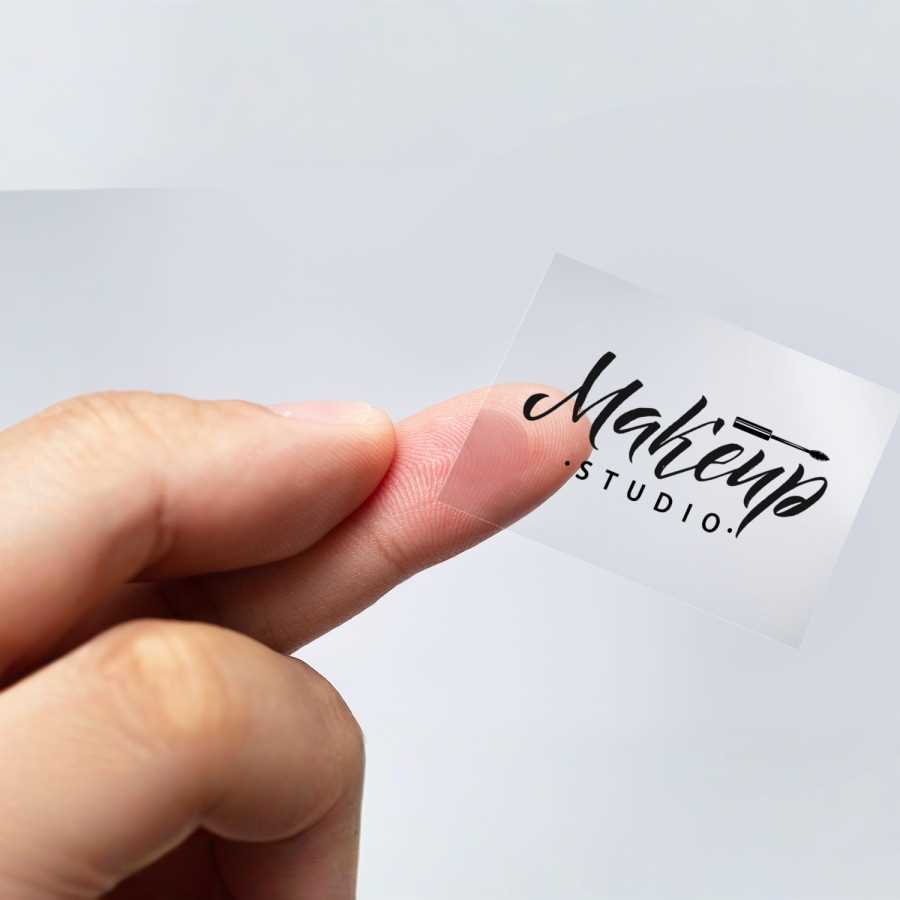
Choose a design that fits your purpose. For custom art, whether for branding, labeling, or decoration, use vector-based programs like Adobe Illustrator or free alternatives such as Inkscape. These tools allow you to create crisp lines and scalable graphics that work well on adhesive materials.
Ensure the design has a transparent background. This is crucial if you want the artwork to blend seamlessly with the surface it’s applied to. Avoid placing colored blocks behind your design, as it could impact the clarity of your creation when placed on different surfaces.
When preparing the artwork, pay attention to the size of your design. Make sure it matches the size of the adhesive sheet you’re using, typically A4 or letter-sized sheets. Adjust your file dimensions accordingly before sending it to print, so there’s no need for resizing after printing.
For printing, select a high-quality inkjet or laser printer depending on the type of adhesive you are using. Inkjet printers are ideal for designs that need rich, vibrant colors, but ensure you are using pigment-based ink to avoid smudging. Laser printers work best with materials that require a more durable finish.
Test your design before printing a large batch. Use regular paper to make sure the colors and alignment are accurate. After confirming everything looks good, print onto the adhesive sheet. Ensure the settings on your printer match the material you’re using for the best results.
Once the design is printed, let the ink dry completely to avoid smearing. Depending on your printer, you may want to use a fixative spray to make the ink more resistant to smudging, especially for designs with heavy ink coverage.
After drying, cut out the design carefully using a craft knife or sharp scissors for precise edges. If you need to remove any excess adhesive, use a craft blade to trim along the edges. This step ensures that your custom creation looks polished and professional when applied.
Finally, apply your design to the desired surface. The adhesive should stick well to most clean, smooth surfaces like glass, plastic, and metal. Press down firmly to avoid air bubbles, and use a squeegee or smooth cloth to ensure even adhesion. Your custom creation is now ready for use!
How to Design Custom Transparent Stickers for Printing
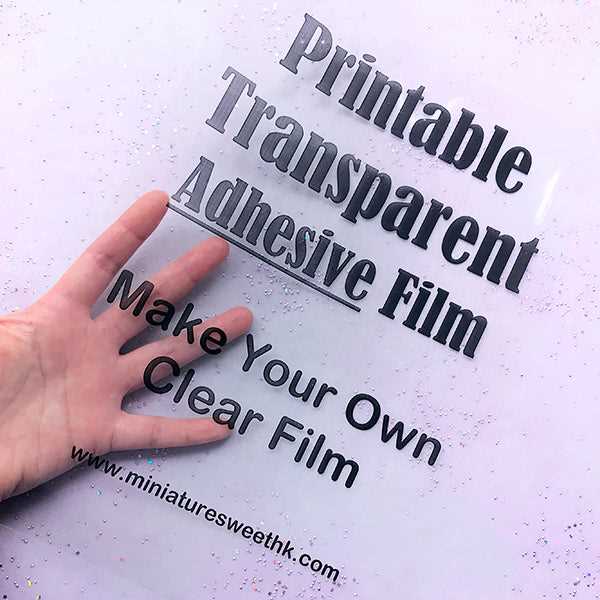
Start by selecting design software that supports working with transparent backgrounds. Programs like Adobe Illustrator or free tools like Inkscape allow you to create vector designs that remain sharp when resized. Set up your document with the correct dimensions to match your material’s size, such as A4 or letter-sized sheets.
Ensure your design has no background color to allow the underlying surface to show through. Keep in mind that any color or pattern you include will only appear as part of the design itself, so make sure that edges and cut lines are clearly defined and don’t blend with the rest of the artwork.
Focus on simplicity and clarity when designing for clear materials. Intricate details or overly complex designs may not print well, especially if the artwork is small. Using bold lines and high-contrast colors will ensure your design stands out, even against a varied background.
Incorporate high-quality images or illustrations into your design, ensuring that they are of sufficient resolution. Low-resolution files will appear pixelated when printed. Always aim for a minimum of 300 DPI (dots per inch) to achieve the best print quality.
After finishing your design, save the file in a format compatible with your printer. PDF or PNG formats are widely supported and ensure that the transparent background is preserved. Double-check that the file maintains its original settings before proceeding to print.
Test print your design on regular paper to check alignment, color accuracy, and overall appearance. Once satisfied, load the adhesive material into your printer and adjust the print settings accordingly for the best results. After printing, let the ink dry fully to prevent any smudging.