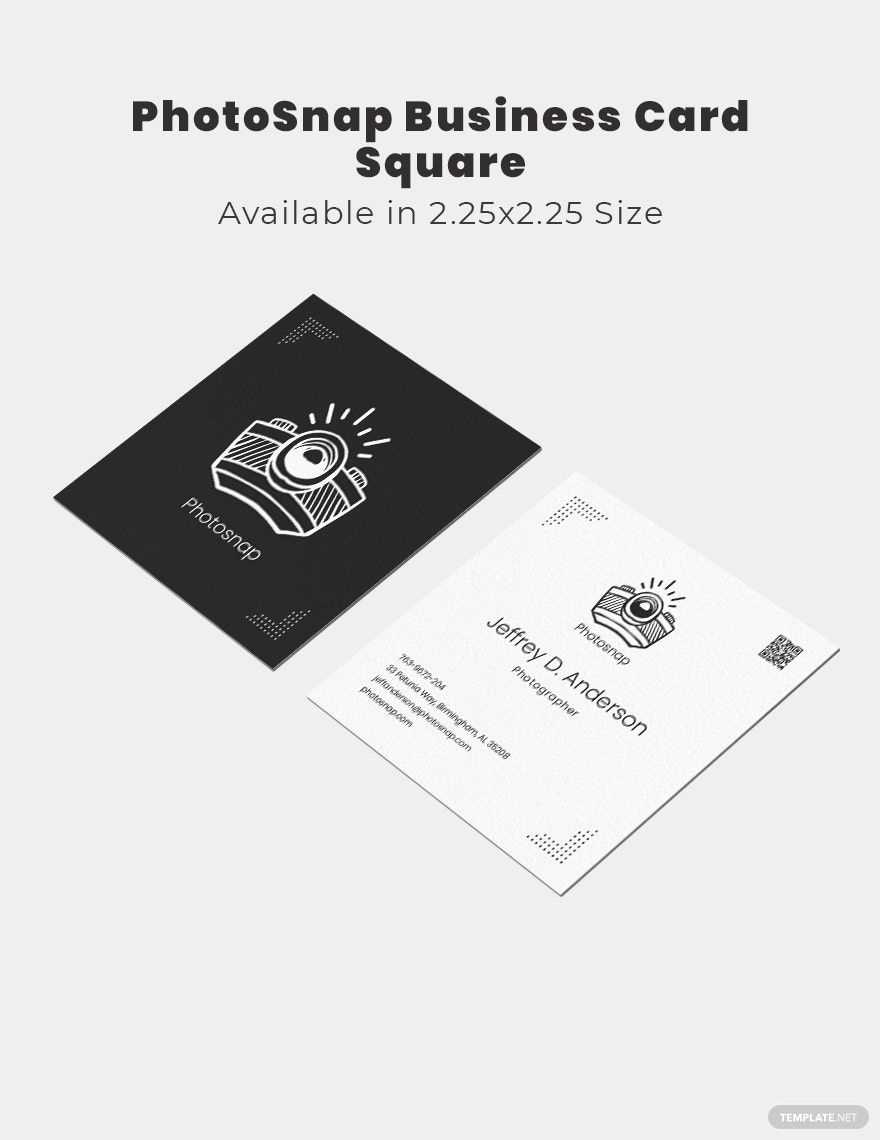
If you need to design custom visuals for physical materials, use online platforms that let you craft, adjust, and print images directly from your device. These tools are designed for users who want quick, personalized results without the complexity of advanced software.
One efficient way to approach this is by utilizing simple image manipulation tools that provide pre-made templates. Choose from a range of formats, then tweak colors, text, and images to match your needs. Whether for business cards, posters, or labels, these services ensure you can start from scratch or modify existing designs to suit your project.
Customize templates with ease by adjusting the layout, size, and content. The best options allow quick re-sizing and seamless incorporation of personal images or logos. If you’re working on a tight deadline, this approach saves time and avoids the need for graphic design skills. You can export your final design in various formats that are ready for professional printing or at-home use.
These tools often feature user-friendly interfaces, allowing you to see how your changes affect the final output in real time. This helps prevent mistakes before sending the file to print, reducing the likelihood of costly errors. With a little creativity, you can produce high-quality materials quickly and efficiently.
HTML
Designing Layouts for Physical Projects
For efficient document creation, use a software with customizable layouts that fit the intended print dimensions. This approach minimizes errors, ensuring that content scales properly when transferred to physical formats. Templates can be modified to meet the specific requirements of brochures, invitations, or other print media.
Use grids and alignment tools to maintain consistency in your design. These tools help to organize the content in a way that looks balanced and professional. They are especially useful for multi-column layouts or when incorporating images alongside text.
Ensure high-quality images are included in your project. For printing, images should be at least 300 dpi to avoid pixelation. Check each image’s resolution before placing it in the document to prevent quality loss in the final output.
Include appropriate margins and bleed zones to prevent content from being cut off when trimming. Always add extra space outside the document’s borders that will be removed during the cutting process. This ensures that your design maintains its intended appearance after printing.
After finalizing your design, export the file in a format that maintains its integrity during printing, such as PDF. This file type preserves fonts, images, and layouts, preventing changes from occurring when the document is opened on different devices.
Before submitting your work to print, double-check color settings. Convert any RGB values to CMYK for accurate color reproduction. This step helps avoid unwanted color shifts between screen displays and printed materials.
Paper choice is critical for achieving the desired finish in printed work. Different textures and weights impact the feel of the final product. Test various paper types, such as glossy or matte, to determine which complements your design the best.
Request a physical proof before starting a full print run. This will allow you to inspect the document for any errors or design inconsistencies, ensuring the final product matches your expectations. Making adjustments before mass production can save time and resources.
HTML
How to Set Up the Printable Snap App on Your Device
To get started, download the program from your device’s store. For Android, visit Google Play; for iOS, head to the App Store. Once installed, open the tool to begin the setup process.
Upon opening, you’ll be prompted to create an account or log in if you already have one. Sign up using your email, Google, or Facebook account for quicker access.
After logging in, configure your preferences. Choose the default print format, resolution, and the specific printer settings for the best results. Adjust these options based on your usual printing needs.
The next step is connecting your device to a printer. Go to the device settings and select the printer you wish to use. Ensure both your phone or tablet and the printer are on the same Wi-Fi network.
Once connected, it’s time to personalize your work area. Organize your saved files, create folders, and move any necessary templates into easy-to-find locations within the app.
If you plan on scanning documents for printing, enable the scanner feature in the settings. Adjust the scanning quality and crop preferences according to what you need for each project.
Before starting any print jobs, run a test to make sure everything is functioning correctly. This ensures that your device communicates well with the printer and that all settings are properly configured.
If any issues arise, consult the troubleshooting section in the help menu. Here you’ll find solutions for connectivity problems, print quality issues, and syncing errors with your printer.