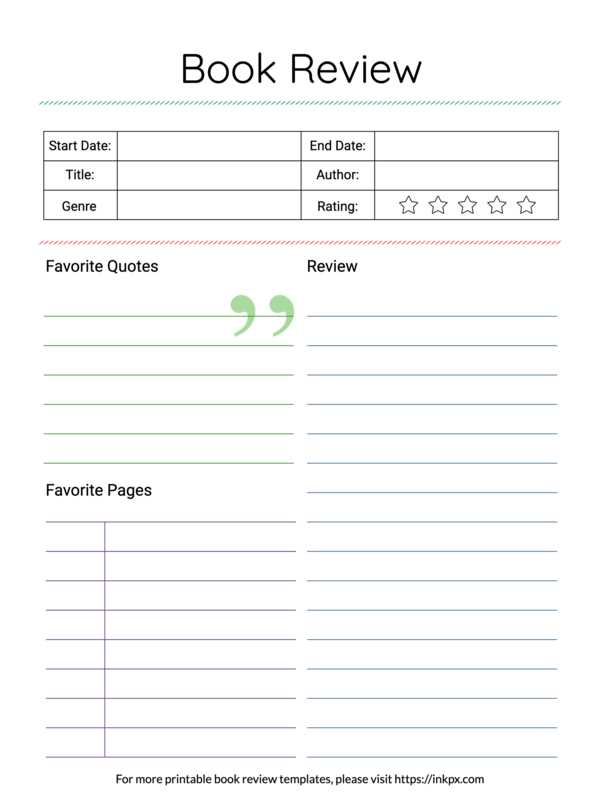
If you want to create high-quality printed content, start by choosing the right dimensions and layout for your work. Whether it’s for a personal project, educational material, or a self-published work, ensuring that your design fits the printer’s capacity is key. Adjust your document settings to match your printer’s paper size, such as A4 or letter format, to avoid unnecessary cropping or resizing.
Consider the margin settings carefully. Narrow margins can give your content a sleek, professional look, but too narrow may lead to issues when printing, especially if the printer has a non-printable border. Set your margins around 0.5 inches unless your printer specifications allow for edge-to-edge printing. This will provide a balanced appearance without losing important content near the edges.
After finalizing your layout, check the resolution of your graphics and text. High-resolution images (300 DPI or more) will ensure sharpness in the print. Low-resolution images might look fine on the screen but can appear pixelated when printed. Use vector graphics for scalability, as they won’t lose quality regardless of the print size.
Choosing the right paper type is just as important. Heavier paper weights will give your creation a more substantial feel, while thinner paper can help reduce costs. For projects like journals or portfolios, use a matte finish for a classic look. Glossy finishes are better suited for images or high-color projects, but be aware they may not be ideal for text-heavy prints.
How to Print Custom Content for Your Creative Projects
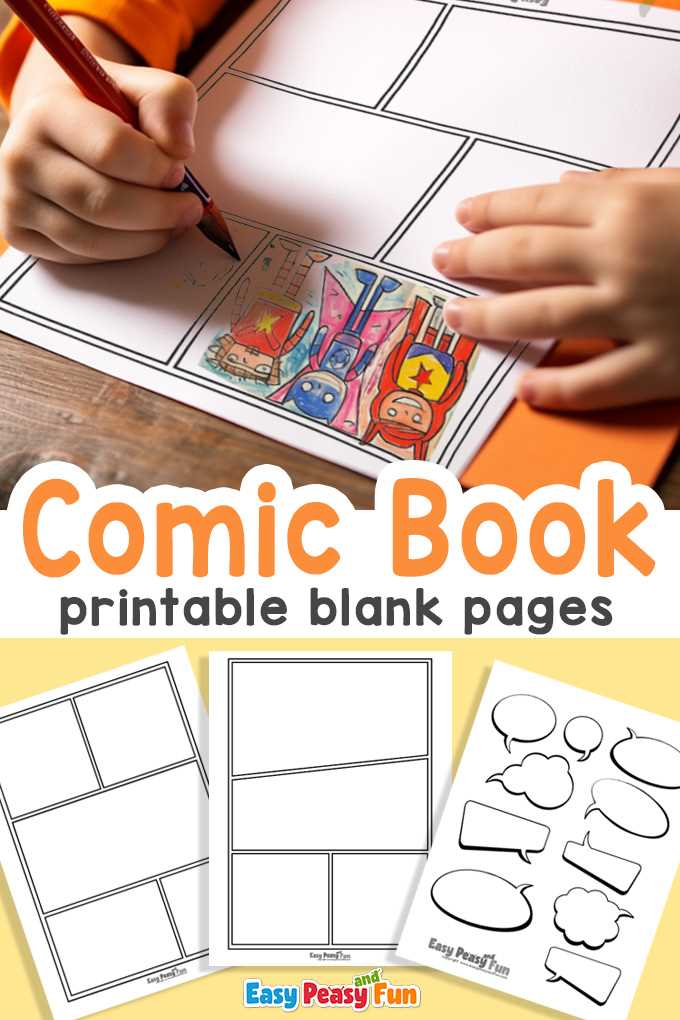
Before printing your design, choose the right software for formatting. Programs like Adobe InDesign or Microsoft Word allow for precise control over text alignment, spacing, and layout. If you’re creating a multi-column format, ensure that the spacing is consistent throughout to maintain readability. Using templates in these tools can simplify the process, especially if you’re printing a series of items.
For optimal print results, use the correct file format. PDFs are often the best choice for printing, as they preserve the design’s integrity across different devices. Ensure your file is set to 300 DPI to maintain high-quality prints. If your document contains images, check each image’s resolution individually to avoid any pixelation when printed. Raster images, such as JPEGs, should be avoided for text-heavy designs, as they lose quality when scaled.
- Choose PDF for consistent results.
- Set the file resolution to 300 DPI for best quality.
- Avoid using raster images for text-heavy projects.
When selecting paper type, understand how the weight affects both the feel and durability. For a more substantial product, opt for heavier paper (around 120-160 gsm). Lightweight paper (80-100 gsm) is best for projects that require flexibility, like brochures or guides. The texture of the paper also plays a role–smooth finishes are best for crisp text, while a textured surface can add visual interest to illustrations.
How to Design Content for Easy Printing
Use a consistent grid layout to ensure that your design elements are aligned and evenly spaced. A common mistake is to leave too much white space around the edges, which can result in wasted paper and an unprofessional look. Keep margins at least 0.5 inches to avoid issues with printers that can’t print close to the edges. Also, choose a clear, readable font and maintain uniformity in font sizes for headings and body text.
When formatting your design, make sure to consider the printer’s limitations. Most printers can’t print to the very edge, so leave a buffer zone around the text. Avoid using too many complex or heavy graphics that could cause printing delays or errors. If your work includes images, ensure they are high-resolution (300 DPI) to avoid pixelation on the final printout. For multi-page designs, set up page numbers and ensure consistent formatting throughout to maintain cohesion.