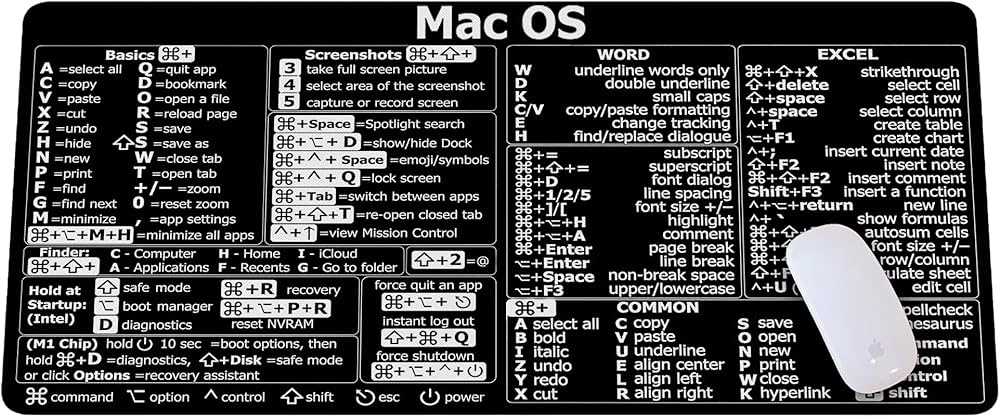
Start by printing a list of key combinations to help you navigate through tasks quickly. These commands will help you save time, whether you’re managing multiple applications or performing simple actions on your device. Keep the printed list next to your workspace for easy reference.
For quick copy-paste actions, you’ll rely heavily on a few basic key combos that can make a huge difference in your workflow. One of the most useful is the classic Command + C for copying and Command + V for pasting, which can be applied across various apps.
If you’re looking to increase your speed further, learn the shortcuts for switching between apps with Command + Tab and using the Command + Space for a faster search feature. These simple commands help you jump between tasks without taking your hands off the keyboard.
Consider customizing these commands to better fit your needs. If you often find yourself repeating a specific task, you can assign a custom combination for quicker access, allowing you to streamline repetitive actions and improve efficiency.
Mac Key Command Reference Guide
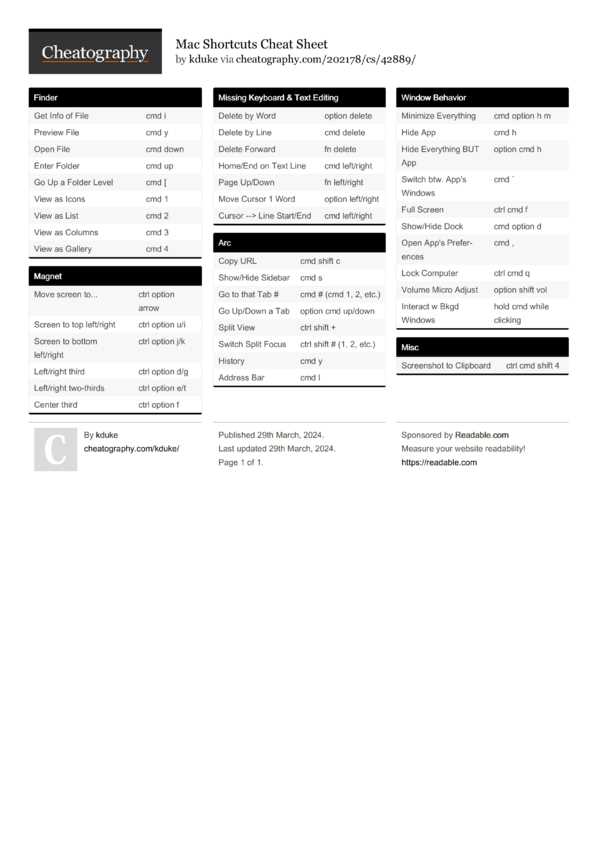
To increase your productivity, start by mastering basic commands like Command + C to copy, Command + V to paste, and Command + X for cutting. These three actions are fundamental and will save you countless clicks as you work across apps.
For fast navigation, use Command + Tab to switch between open applications. This simple command lets you quickly jump between tasks without the need to mouse over the Dock, helping you keep your focus where it’s needed.
If you’re organizing files, Command + N will create a new window in most apps, while Command + T opens a new tab in browsers. These are simple but highly useful for managing multiple projects at once.
Use Command + Space to open Spotlight Search, an invaluable tool for quickly finding files, launching apps, and even performing calculations without leaving your current window. It’s one of the fastest ways to search your system.
- Command + Shift + 4 enables you to capture a portion of your screen, perfect for quickly grabbing snippets of information or images.
- Command + Q closes an app completely, while Command + W only closes the current window.
For those who want to customize their workflow, explore creating your own key combinations. By adjusting the system preferences, you can assign shortcuts to specific actions that you use most often, saving even more time in the long run.
How to Print and Use Mac Key Command Reference
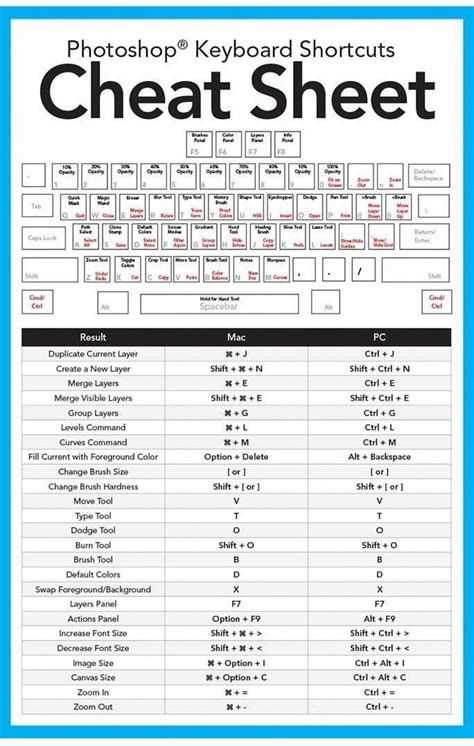
Begin by downloading the command list in a clear, readable format. Ensure the layout is well-organized with easily distinguishable categories like system commands, app commands, and search functions for quick reference.
After downloading, open the document and check the print preview to make sure the size and margins fit your paper type. Use high-quality paper like cardstock to ensure durability, especially if you plan to keep the list nearby for frequent use.
When printing, opt for color to differentiate between various types of actions. For instance, system commands can be printed in one color, while browser commands can be in another. This visual distinction will make it easier to locate the right command at a glance.
After printing, laminate the sheet for long-term use. This will help protect it from wear and tear, particularly if you plan to keep it on your desk or in your work area. A laminated sheet is also easier to wipe clean if needed.
- Consider using the printed list as a reference guide while learning new commands.
- Place the list in a visible spot on your desk or near your computer for quick access when you need a command.
Once you have the printed guide, start using the commands in your daily tasks. Begin with the most frequently used combinations like Command + C and Command + V, and gradually work your way through more advanced functions.
As you become more familiar with the commands, try customizing them to suit your personal workflow. Many applications allow you to assign custom combinations, saving even more time by streamlining tasks you do regularly.