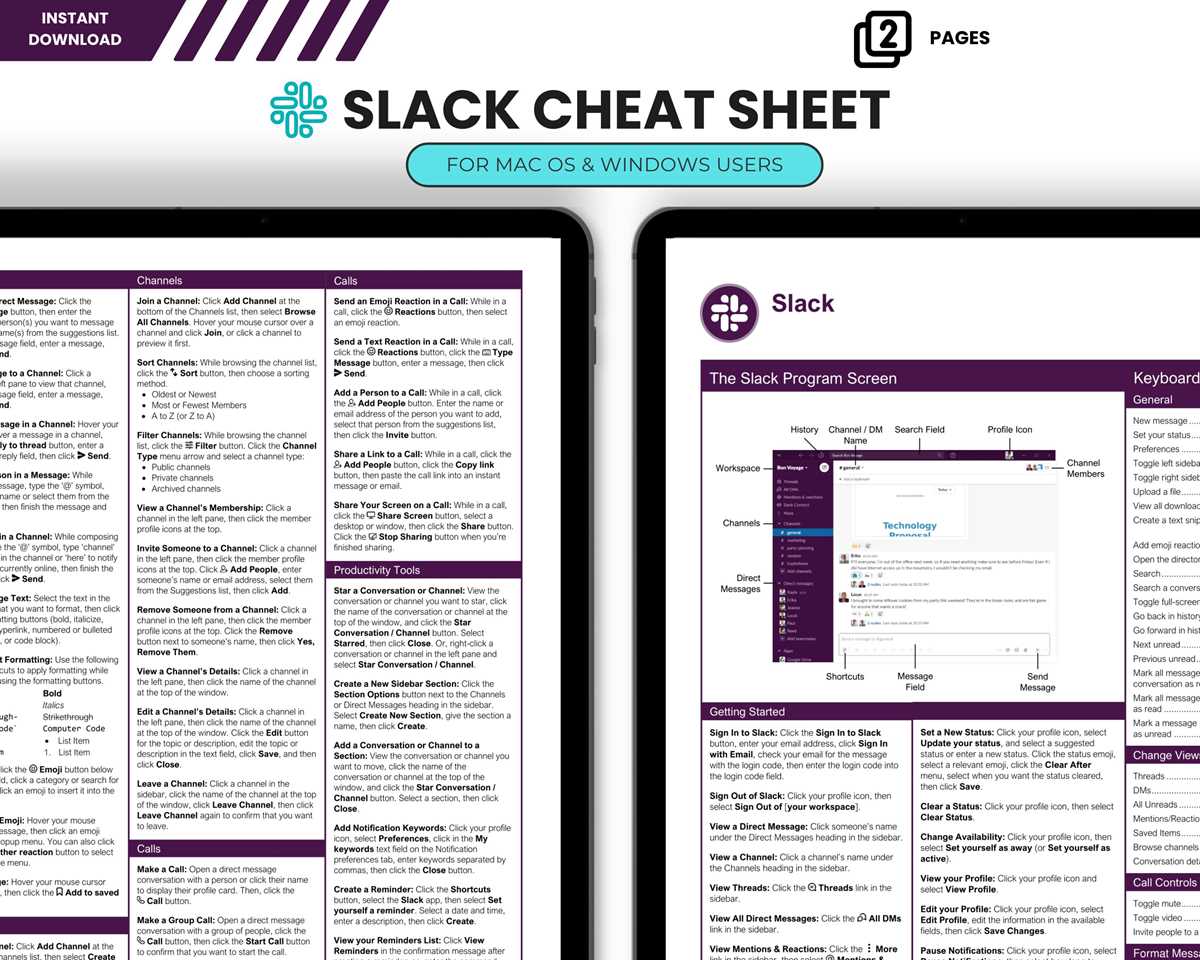
Save time by memorizing the most useful key combinations for your everyday tasks. These commands allow you to quickly manage files, open apps, or switch between programs without lifting your hands from the desk. With just a few simple presses, you can streamline your workflow and eliminate the need for multiple clicks and mouse movements.
Start by printing a list of the most common commands that apply to your day-to-day operations. Focus on actions like copy, paste, switching windows, and opening Finder windows, as they will give you the quickest wins. Once you have the list, place it near your workspace so that you can refer to it whenever you need.
In addition to system-wide commands, take advantage of app-specific key combinations. Programs like Safari, Pages, and Photos have their own set of shortcuts that can help you navigate more swiftly and access tools in a fraction of the time. Don’t forget to customize shortcuts for tasks that you perform regularly–this small adjustment can make a big difference in your productivity.
Quick Access to Time-Saving Key Commands
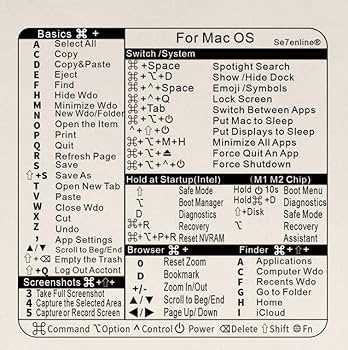
For immediate access to basic tasks, print a list with frequently used commands. Focus on system-wide actions such as copy, paste, save, and undo. Place this guide by your workspace for easy reference, allowing you to work faster without constantly searching for options in menus.
File management is a key area where speed matters. Learn the combinations for opening new windows, closing tabs, and quickly moving files. For example, use Command + N to open new Finder windows, Command + W to close tabs, and Command + Shift + N to create new folders. These simple key combinations can save several seconds per task, adding up over time.
When working within applications, know the combinations that speed up your workflow. For example, in Safari, use Command + T to open a new tab, Command + L to highlight the URL bar, and Command + R to refresh the page. Familiarizing yourself with these app-specific commands lets you breeze through tasks without needing to navigate through menus.
Don’t forget to customize your own set of key commands. Many apps allow you to create personal shortcuts for common tasks. By customizing, you’ll have tailored combinations that fit your unique workflow, reducing the time spent looking for or manually performing certain actions.
Finally, for a clean and organized desk, consider keeping your printed guide handy. You can use it as a quick reference while you get accustomed to the commands. After some practice, these shortcuts will become second nature, allowing you to work more fluidly without needing to rely on the mouse as often.
How to Print and Use a Mac Keyboard Shortcuts Cheat Sheet
To create a useful guide, start by selecting the key commands that you use most often. Print a document with these actions, organizing them by categories such as file management, app navigation, and system commands. This way, you can quickly find the combinations you need. Use a clear, readable font, and consider color-coding groups of related commands to make the list easier to follow. Place it where you can easily access it, like on your desk or next to your monitor.
Once printed, start integrating these key presses into your daily tasks. At first, you may need to refer to the sheet regularly. With continued use, these commands will become second nature, and you’ll begin completing tasks more swiftly. Keep the guide up to date by adding new combinations as you discover them or as software updates introduce new options. This will ensure you maintain an efficient workflow without wasting time searching through menus or settings.