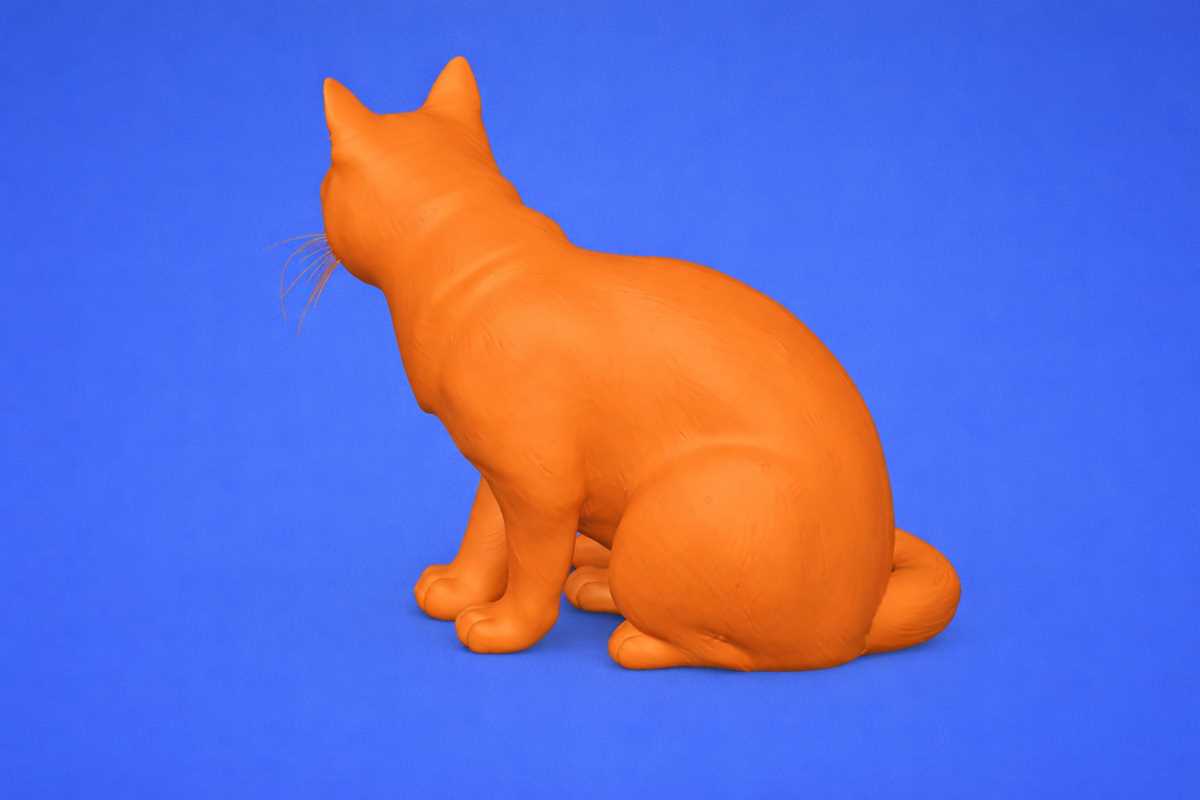
Start by choosing a reliable 3D printer that can handle intricate details. For small animal sculptures, printers like the Creality Ender 3 or Anycubic i3 Mega offer precise results with good material compatibility. Use PLA or PETG filament for solid, durable models with smooth finishes.
If you want to create your own design, software like Tinkercad or Blender allows you to sculpt detailed figures. Begin with basic shapes and refine the features to capture the look and proportions of the creature. Ensure your model has solid walls and a consistent structure to avoid printing errors.
For optimal results, adjust print settings such as layer height and print speed. Smaller layer heights (e.g., 0.1 mm) will give a smoother finish, but may increase print time. Use supports if the model has overhangs, but try to minimize their use to reduce cleanup time. After printing, clean the model carefully and consider post-processing techniques like sanding or painting for extra realism.
3D Models of Animal Figures: A Practical Guide
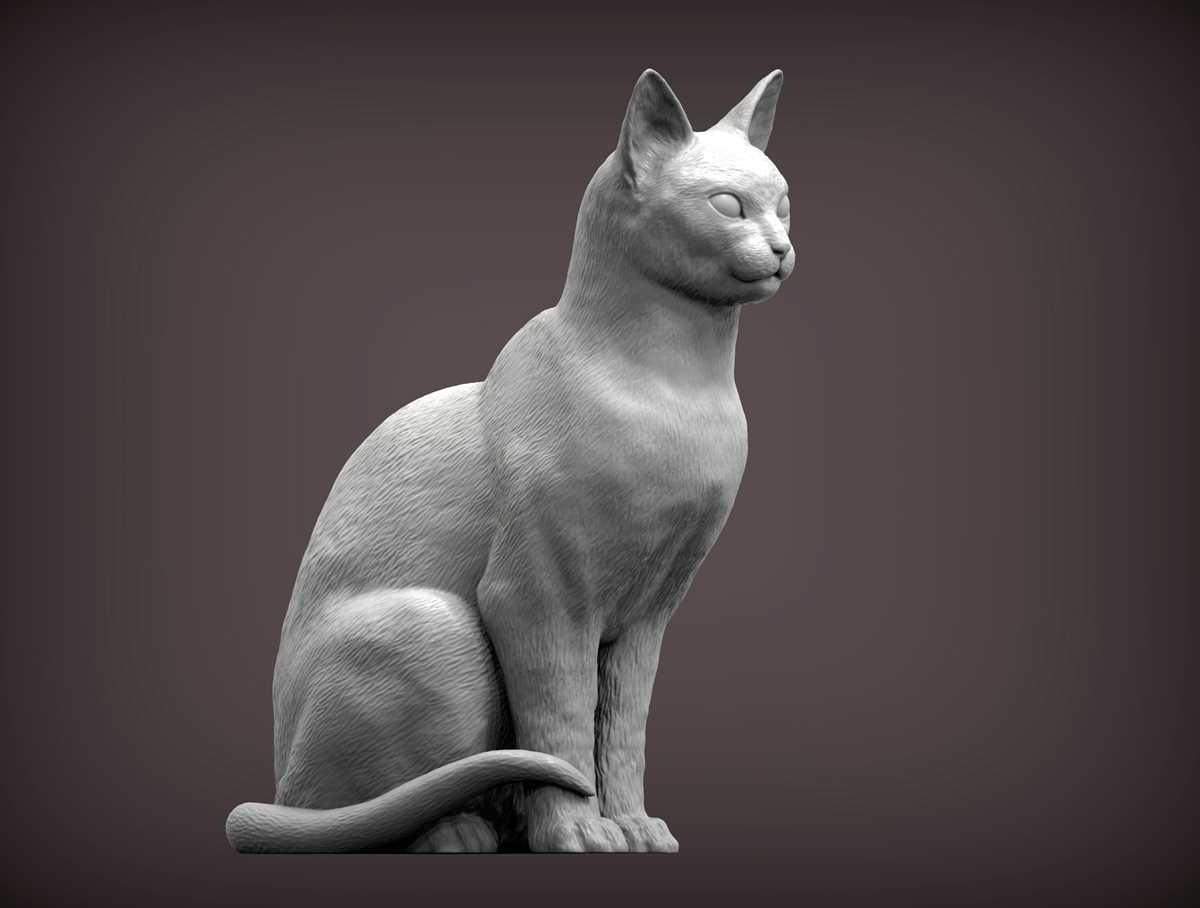
To create a detailed animal figure, start with the right 3D modeling software. Programs like Tinkercad or Blender provide an easy-to-learn interface for beginners, while offering enough power for more complex designs. Tinkercad is a great choice for those starting out, while Blender is better suited for intricate detailing and sculpting.
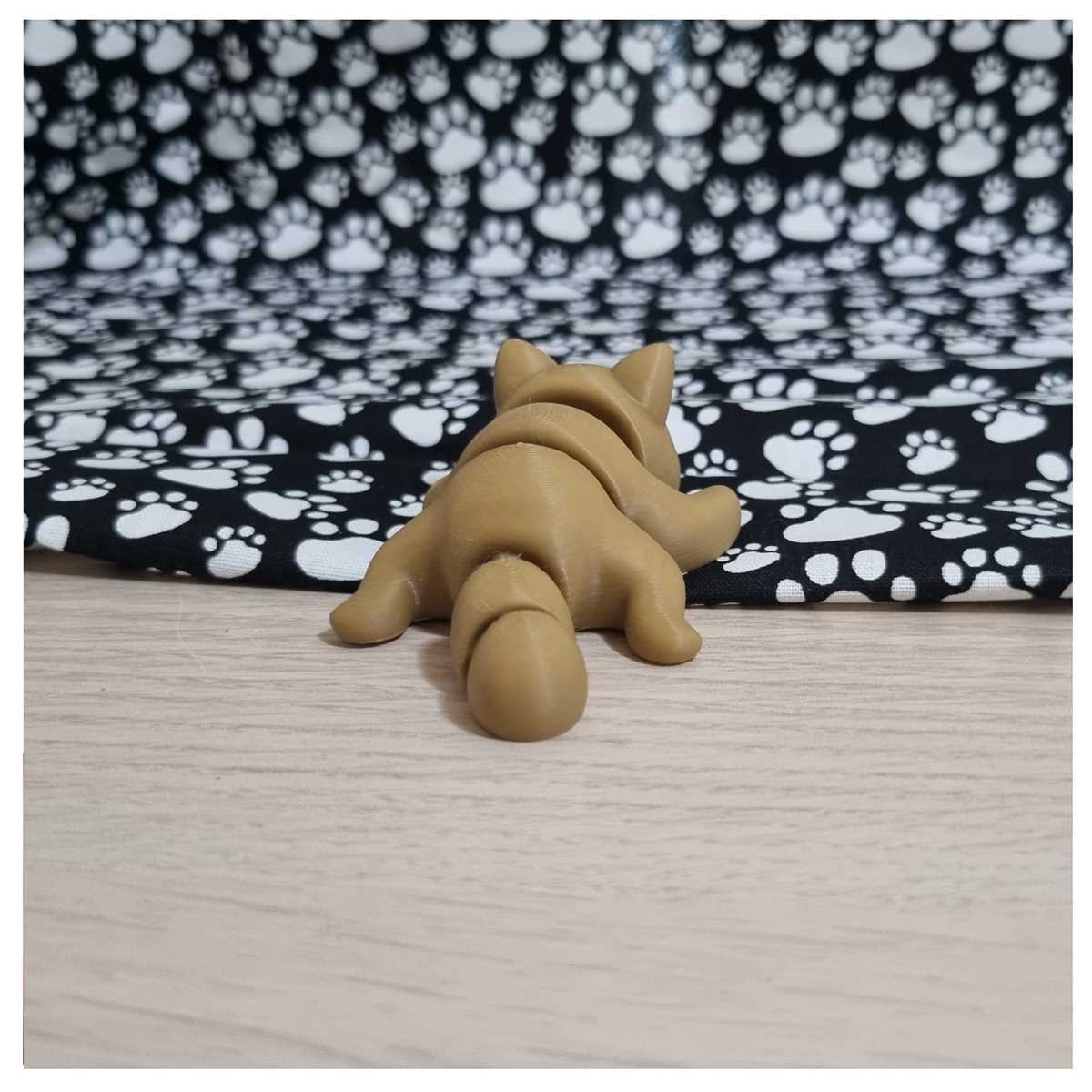
Choose a 3D printer that offers precise details. For small-scale models, an FDM printer such as the Creality Ender 3 will work well, especially with PLA filament. This material is easy to work with and provides smooth surfaces, making it ideal for animal figures with fine details. If you need more durability or flexibility, consider switching to PETG or ABS filaments.
Designing a creature requires attention to proportions and structural integrity. Ensure the model has solid walls, and if you’re creating a dynamic pose, make sure the legs and tail have adequate support. Thin parts can break during printing, so it’s crucial to check your design for balance. You can use tools like mesh repair in Blender to ensure the model is watertight and error-free before exporting it.
When setting up your print, consider layer height and speed. A lower layer height (around 0.1mm) will yield a more detailed finish but can increase printing time. A higher layer height (0.2mm) will print faster but may not capture fine details. Depending on your model’s complexity, you may need to adjust these settings for the best balance between speed and quality.
- Use supports for overhangs: Animals with ears, tails, or extended limbs require extra support to print correctly.
- Consider infill density: A higher infill (50-100%) will give your model strength, while a lower infill (20-30%) is sufficient for decorative pieces.
- Print in sections: For larger animals, it may be more manageable to break the model into parts and assemble them after printing.
Once the printing is complete, carefully remove any supports. Sand down rough areas, particularly around joints or smaller details. You can also add a coat of paint to bring out the textures and give the figure a more realistic appearance. For added realism, try using different finishes like glossy or matte varnish depending on your desired effect.
How to Design a 3D Model of an Animal from Scratch
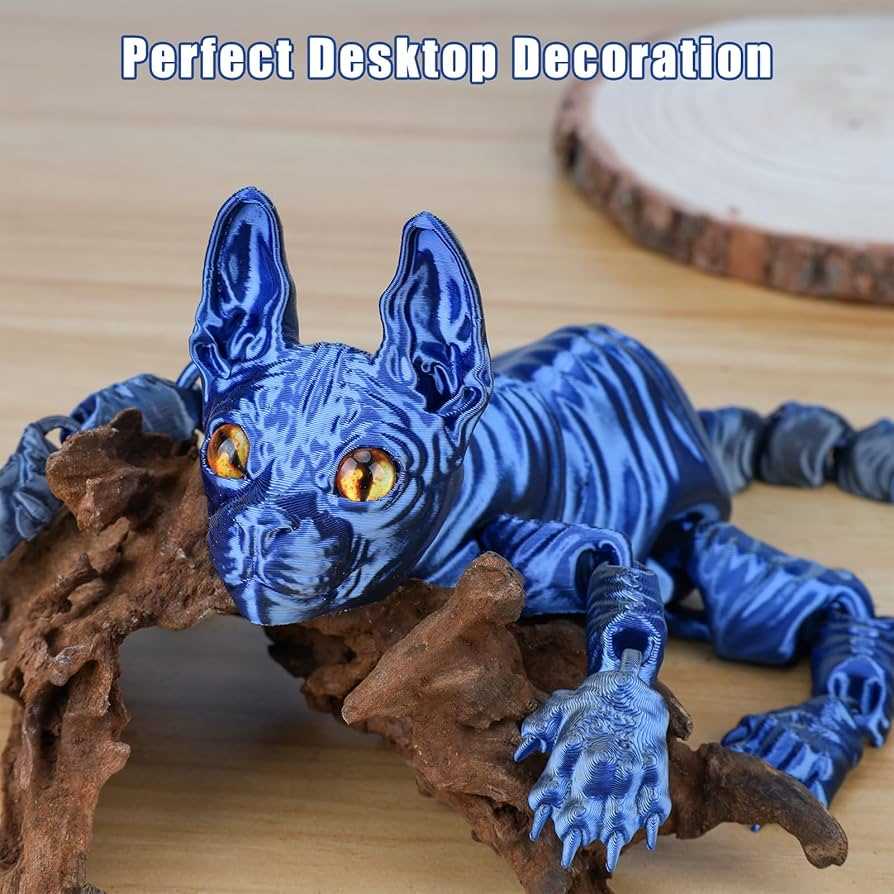
Begin by outlining the basic structure of your figure. Start with a simple shape, such as a sphere or a cylinder, to form the body. Use your software’s tools to refine these shapes into the general outline of your creature. Don’t worry about fine details at first; focus on getting the basic anatomy right.
Once the basic form is established, move on to adding limbs, ears, or tail. These parts should be separate objects in your model to avoid printing issues later. Pay attention to the proportions and positioning. A common mistake is to make the legs too thin or short, which may affect stability during printing.
For detailing, use sculpting tools in your modeling software. Add smaller features like the eyes, nose, or fur texture. Use symmetry tools if you’re designing a symmetrical shape, such as the head or body, to save time and ensure consistency. Test the model in your software’s preview to check for any unnecessary overhangs or weak areas that may cause issues during printing.
Finally, check the thickness of all parts. Ensure that every part of your model has enough material to print successfully. For smaller features, like the nose or paws, aim for at least 1-2 mm thickness. Export your design as an STL file, and you’re ready to start the printing process.