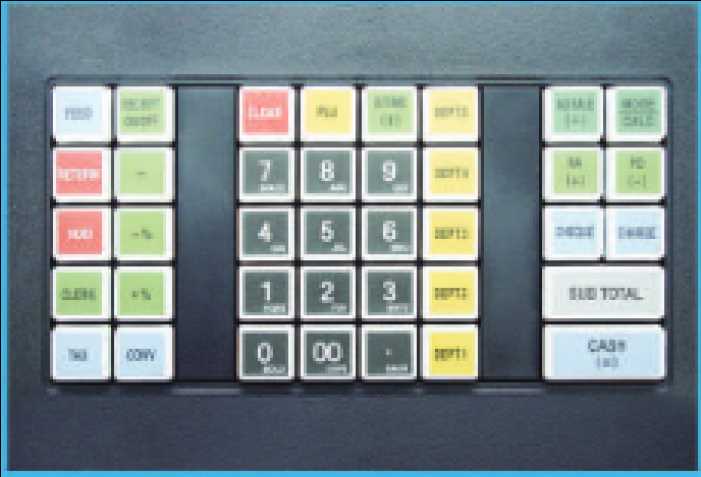
If you’re looking to streamline your transaction process, consider integrating a simple yet reliable tool for printing purchase slips directly from your system. These tools can generate invoices without the need for complex software installations or specialized hardware, significantly reducing your operational costs.
To make the most of such a solution, ensure that your point-of-sale system is compatible with popular printing devices. Many affordable printers support various formats, making them perfect for generating sales receipts, ensuring accurate records for inventory, tax calculations, and customer satisfaction. Choose printers that offer seamless connection options, such as USB or Bluetooth, to simplify installation.
When setting up the system, pay attention to the quality of the printed slips. Choose a model that produces clear, legible text, as well as crisp barcodes and logos. A fast printing speed will also enhance your customer experience, ensuring smooth and quick transactions during busy periods. Keep in mind that some printers are optimized for specific tasks, so selecting one based on the volume of transactions can prevent unnecessary downtime or technical issues.
How to Set Up a Paper-Based Transaction System
Start with a simple template that includes item description, quantity, price per unit, and total cost for each sale. This can be easily printed on any standard printer. By ensuring that the layout is clear and organized, you can quickly track transactions without needing complex software or hardware. Just make sure to leave space for a signature or notes, in case of refunds or special instructions.
Ensure that each page has numbered receipts for easy reference. Numbering helps prevent errors when reconciling accounts at the end of the day and can also aid in tracking sales trends over time. Add a section for tax rates to avoid confusion during tax season. This will allow you to manually calculate the final amount due, and you can adjust for discounts or additional fees right on the spot.
If you are running a business with high transaction volumes, consider creating multiple templates for different types of products or services. For example, a different layout might be necessary for clothing items versus food products, due to varying pricing structures. Make use of color-coding or bold headings to make the document easy to read and differentiate categories at a glance.
At the bottom of each receipt, include a small space for customer feedback or a thank-you message. This small personal touch can improve customer relations and encourage repeat business. It’s a simple way to keep track of feedback without the need for digital systems or customer management tools.
For accounting purposes, store each printed transaction in a dedicated folder or binder. Keep them organized by date, and make sure to back up your records periodically. Manual documentation of sales might take more time, but it gives you full control over how you track and report income, and can help maintain a more personal connection to your customers.
How to Set Up a Printable Register for Your Store
Install a point-of-sale (POS) system that allows for customized receipts. Make sure it integrates with your inventory software for real-time updates on sales and stock. Most systems offer templates for receipt design, enabling you to add store branding, discounts, and payment methods to the printed output.
Connect a thermal printer to the POS terminal. Thermal printers are the most cost-effective and reliable option for printing receipts. Ensure the printer model is compatible with your POS system, and configure it to handle both small and large transactions efficiently.
Configure the settings for your register’s output. Adjust the font size, paper format, and layout to suit your store’s needs. Consider setting up fields for itemized pricing, taxes, totals, and customer contact information if needed.
- Choose the type of receipt paper: roll or flat.
- Set paper dimensions to match the printer specifications.
- Customize the header with your store’s logo and contact details.
Enable transaction tracking in the system for each printed receipt. This ensures that each printout is connected to a specific sale. You can store records digitally or link them with customer profiles, which helps with returns and warranty claims.
Test the entire setup. Run sample transactions to check the quality of prints, clarity of information, and accuracy of prices. If the prints are blurry or misaligned, adjust the printer’s settings or replace the paper roll. Ensure everything works seamlessly before going live in your store.
Choosing the Right Software for Transaction Systems
Opt for software that offers flexibility in print formats and is compatible with various receipt printers. Ensure the program supports commonly used file types for easy integration with hardware, such as PDFs or text-based outputs. Choose an option with customization features that allow adjusting receipt layouts, font sizes, and item descriptions to fit business needs.
Compatibility with other business tools, such as inventory management or point of sale systems, can streamline daily operations. Look for programs that allow real-time data syncing with other platforms to prevent errors in financial reporting and stock levels. Seamless communication between these systems helps maintain smooth workflows and reduces the chance of manual input mistakes.
Prioritize software that offers reliable support and regular updates. A strong customer service team can provide assistance during installation or troubleshooting, saving time and minimizing downtime. Ensure the software provider offers training materials, tutorials, or even live support for easier adaptation and troubleshooting over time.
Customizing Receipts with Your Branding
To align your receipts with your brand’s identity, use custom fonts, colors, and logos. Select a font that matches your business style–whether modern, traditional, or playful. Choose colors that reflect your brand’s palette for text, borders, or background elements. Integrating your logo at the top or bottom of the receipt can help reinforce brand recognition with every transaction. Additionally, use your business tagline or contact information to make each receipt a part of your marketing materials.
When personalizing receipt layouts, ensure that key details such as transaction data remain clear and legible. Avoid clutter by focusing on essential information and leaving space for your logo and promotional messages. Some tools offer options for adjusting margins, line spacing, and text sizes, which can improve readability while maintaining a professional look. Consistent use of your custom design across all printed documents strengthens brand consistency and creates a lasting impression.
Integrating Printable Systems with POS Platforms
Linking your transaction processing system with receipt printing solutions can be streamlined by utilizing a well-integrated interface. The most effective approach is to choose a POS software that supports seamless hardware communication protocols. Ensure that the POS system includes built-in drivers for printer models, allowing for automatic configuration and eliminating the need for manual setup. This minimizes time-consuming troubleshooting and ensures stable performance across different transaction types.
Another key factor is ensuring compatibility with commonly used interfaces such as USB, Ethernet, or Bluetooth. For instance, Ethernet-connected devices allow remote monitoring and firmware updates, while Bluetooth provides mobility for service-based businesses. These options offer flexibility, depending on whether the operation requires stationary terminals or more portable setups for customer-facing applications.
Once integrated, testing transaction flows is essential. Run multiple transactions with varied order sizes, ensuring receipts are printed correctly and the process is fluid. Focus on verifying that timestamps, product details, and total prices are displayed accurately without errors. Additionally, ensure that any promotional offers or discounts appear as intended on the printed receipts. A discrepancy at this stage could lead to operational disruptions or customer dissatisfaction.
| POS Feature | Printer Connection Type | Benefit |
|---|---|---|
| Ethernet Support | Wired Connection | Remote updates and centralized monitoring |
| Bluetooth Compatibility | Wireless Connection | Mobility for on-the-go transactions |
| USB Integration | Wired Connection | Simple setup and low-cost option |