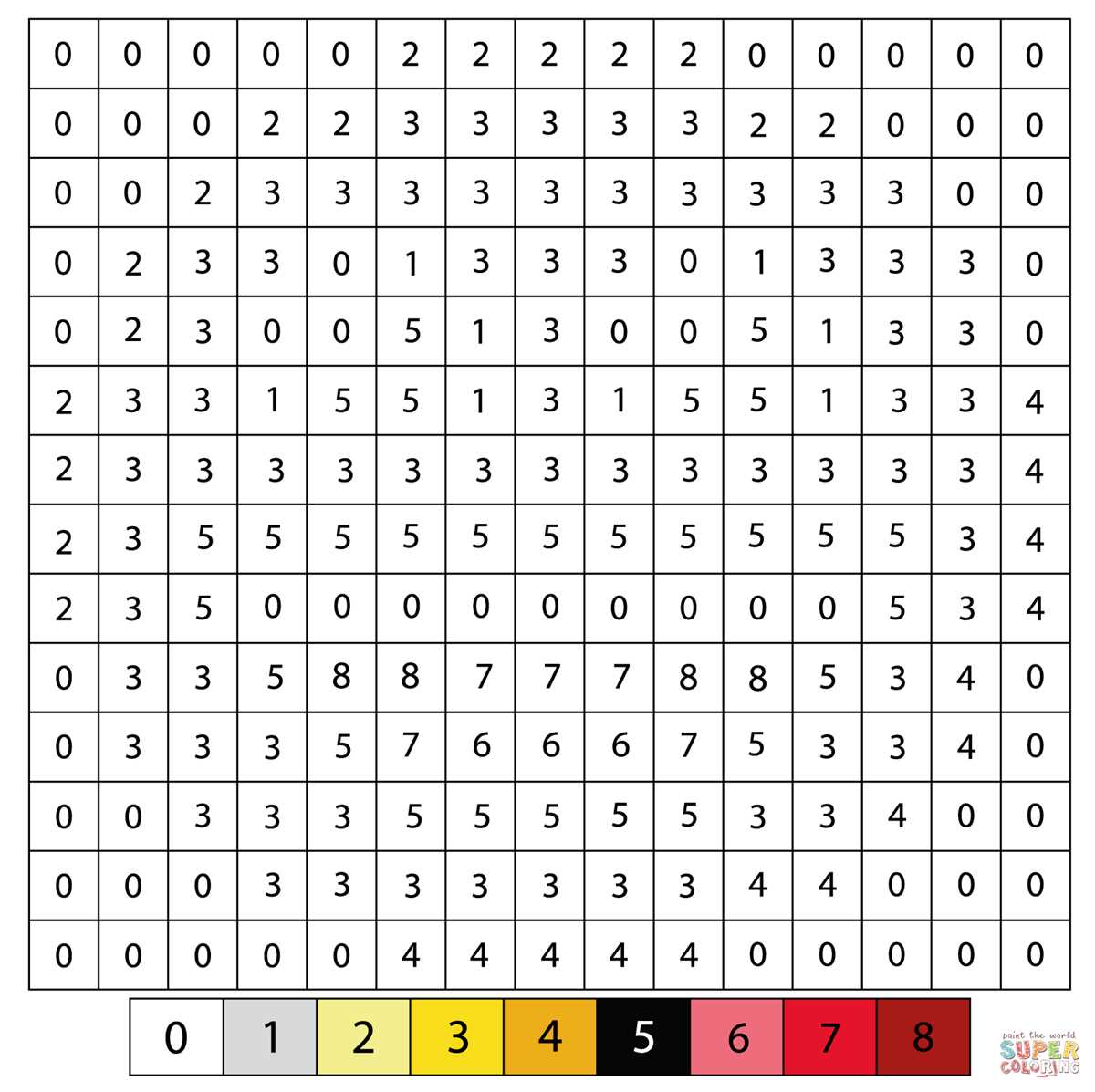
To create crisp and clean designs, start by selecting the correct paper type for your chosen graphics. Use thick, smooth sheets that can withstand markers and colored pencils without bleeding through. A cardstock or heavyweight paper will help maintain the sharp edges of blocky patterns, providing a more satisfying result when completed.
When downloading designs, ensure the resolution is high enough for clear lines and distinct blocks. Low-resolution images can lead to pixelated edges and a less enjoyable experience. Look for files that are specifically intended for printing, ensuring they retain quality after being scaled up to full-size sheets.
Once you have the design ready to print, adjust the settings on your printer for the best outcome. If using an inkjet printer, ensure the settings are optimized for high-quality photo paper to capture the details. A simple borderless print can sometimes yield the cleanest results, especially for smaller designs with minimal detail.
Printable Pixel Art Designs
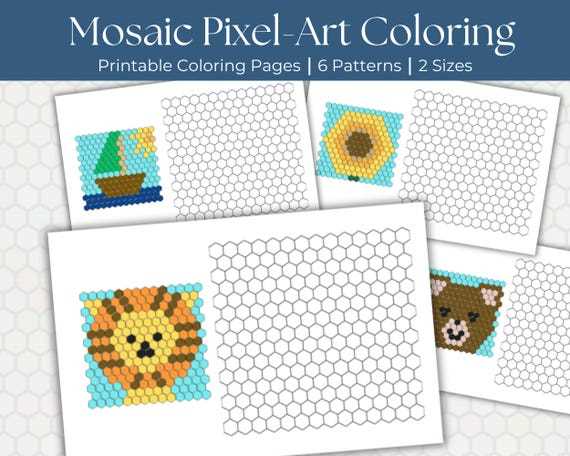
For clear, sharp results, select designs with clean, well-defined blocks. These are ideal for maintaining the visual integrity of the patterns when you begin filling in sections. Opt for templates that have consistent line thickness and well-spaced grid squares, as these will prevent overcrowding and ensure the shapes remain distinct when coloring.
Ensure your paper choice is sturdy enough to handle markers or colored pencils. A thicker paper, such as cardstock, will provide more durability, prevent bleeding, and preserve the sharpness of the edges in the design. Avoid lightweight printer paper, as it might tear easily when you add color or may result in smudging.
Before printing, check the image size settings in your printer’s preferences. Scaling the image to fit a standard sheet may cause the grid to lose sharpness, while too large a design can distort the blocks. Choose the “fit to page” option or manually adjust the dimensions to suit your desired layout for the best fit.
Consider the medium you plan to use for filling in the sections. Water-based markers can work well for smaller blocks, but for larger areas, colored pencils provide more control and less mess. Use markers with a fine tip for intricate designs, while thicker markers are great for large spaces. Test a small section on scrap paper to ensure the markers do not bleed through.
After printing and coloring, consider displaying your work. Framing these grid-based pieces is a great way to showcase your designs and protect them from wear and tear. You can also create a small portfolio of your colored creations to share with friends or family.
How to Choose the Best Paper for Pixel Designs
For clear and sharp results, choose paper with a weight of at least 160gsm. This type of paper is thick enough to prevent bleeding from markers and maintains the structure of the grid-based design. It’s also less prone to curling, ensuring your image stays flat while you fill in each section.
If you plan to use colored pencils, opt for smooth, lightly textured paper, such as a medium-weight cardstock, which allows the pencils to blend easily without causing rough or uneven strokes. For watercolor markers, consider a heavier-weight paper that can absorb moisture without warping. Test your materials on a small piece to ensure compatibility before starting your main design.
Where to Find High-Quality Pixel Sheets Online
Several websites offer a wide selection of grid-based designs for enthusiasts. Websites like PixelJoint provide downloadable templates that cater to both beginners and advanced users. Their collection includes characters, landscapes, and abstract designs that are perfect for filling in with colors or experimenting with your own patterns.
DeviantArt also hosts a range of high-quality designs created by artists from around the world. You can browse through user-generated content, many of which are available for free, or purchase premium designs from skilled creators. Use the search filters to find specific types of designs, such as characters, animals, or abstract grids.
If you’re seeking a more specialized collection, Pixel Art Maker is a great resource for customizable grids. It allows users to create and download their own designs directly from the site, offering flexibility if you’re looking for something specific or want to make minor adjustments before downloading.
Pixilart offers a platform for both creating and downloading pixel-based illustrations. You can find thousands of user-created designs and even upload your own. Their community aspect encourages sharing tips, techniques, and feedback, making it an ideal site for both creators and casual users.
For those who want access to a curated list of high-resolution designs, OpenGameArt has an extensive library of downloadable assets. While mainly focused on game development resources, the pixel-based illustrations here are useful for various creative projects and come in different file formats for convenience.
Step-by-Step Guide to Printing Pixel Designs for Filling
Begin by selecting the image you wish to print. Websites such as PixelJoint and DeviantArt offer a variety of grids ready for download. Look for images with a clear structure that you can easily replicate using different colors. Ensure the design is the appropriate size for your printer, as oversized images may need resizing.
Once you’ve chosen a design, open it in an image editing program such as GIMP or Photoshop. If the design is not already in the correct resolution, adjust it to match your printer’s capabilities. Images that are too small may lose quality when printed, while overly large designs can lose detail or be distorted.
Next, crop the image if necessary. This ensures you print only the sections you want and avoid wasting paper. Most editing software allows you to select an area and trim the edges. Make sure the image is centered on the page to prevent any part from being cut off during printing.
Now, it’s time to set up your printer. Open the print dialog and choose the correct paper size and print quality settings. For best results, select “high quality” under print settings to maintain the clarity of the design. Choose either “portrait” or “landscape” orientation depending on the layout of your image.
After adjusting the settings, print a test page. This ensures that the image aligns correctly and that the colors appear as expected. If the test page looks off-center or unclear, make adjustments in the print dialog and run another test.
If the image is ready, proceed with printing the final copy. Use a thicker paper for a more durable result, especially if you’re planning to color with markers or paint. Standard copy paper may be sufficient for colored pencils, but cardstock or other heavy-duty paper types are ideal for more vibrant and long-lasting results.
Once printed, the next step is to begin adding color! Use your preferred materials, such as crayons, colored pencils, or markers, to fill in the design. Work carefully within the grid to keep the aesthetic of the original image intact.
Tips for Coloring Pixel Designs Without Losing Detail
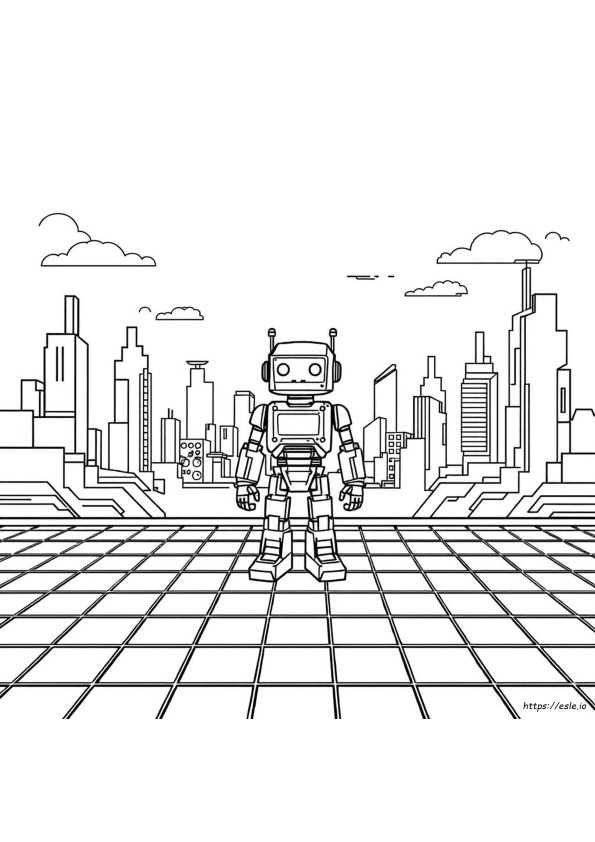
Start by choosing the right tools for precise filling. Use fine-tipped markers or colored pencils for better control. These tools allow you to work within the grid and prevent overlapping or smudging, which can blur the details of the original design.
Focus on the grid layout. Each block or section of the design should be filled with one solid color. Avoid blending or over-layering colors, as this can distort the grid structure and make it harder to distinguish individual elements.
Use contrasting colors for better clarity. When selecting your color palette, choose shades that contrast well with each other to maintain the integrity of the design. For example, using a light color next to a dark one can help define the edges of shapes clearly.
Take your time. Avoid rushing through the process, as speed can lead to mistakes and loss of detail. Work on smaller sections at a time to ensure each part is completed with care and precision. This method also helps you stay focused on the grid pattern.
Work with a magnifying tool if necessary. If you find it difficult to see smaller squares or details, consider using a magnifying glass or zooming in on the design. This will help you fill each square correctly and avoid errors that might otherwise go unnoticed.
Finally, once the design is finished, review it for any missed sections. Sometimes, small details can be easily overlooked. Check the design from a distance to ensure that the filled-in sections align properly with the grid, and touch up any areas that might need refinement.