
For precise customization of clothing or home decor, using heat-transfer sheets for printing designs is one of the best approaches. These materials allow you to print your unique graphics or text and transfer them seamlessly onto fabric surfaces using a heat press or regular iron. The process involves printing your design on the specially coated side, followed by transferring it using heat, which activates the adhesive and bonds the print to the fabric.
To achieve a smooth transfer, always ensure your fabric is clean and free of wrinkles before pressing. Opt for medium to high heat settings and avoid steam, as it can interfere with the transfer process. Use a protective parchment or parchment-like paper between the iron or press and the material to prevent direct contact, which might damage the design or fabric.
For durability, check that the heat application is even across the design. Press for the recommended time–usually around 30-45 seconds–and allow the transfer to cool before peeling off the backing. This ensures the design is firmly set and won’t peel off after multiple washes.
Choosing the right type of fabric is key. Soft fabrics like cotton work great, while more textured materials might require additional attention. Experiment with different settings based on the material and design size to perfect your method.
HTML
Heat Transfer Material for Custom Designs
This product allows you to print your designs onto a flexible material that adheres to fabrics using a heat press or home iron. For optimal results, ensure that your printer is compatible with this specific transfer material, as some printers might require specific settings or ink types for proper adhesion and color quality. Additionally, adjust your heat press temperature to match the manufacturer’s guidelines, typically between 300°F and 350°F, to prevent damaging the material or fabric.
Cutting your design with precision is key to achieving a professional look. Use a sharp blade on your cutting machine and opt for the reverse cut method, which helps avoid any unwanted errors. Align the design carefully before pressing, ensuring it’s centered and straight to avoid wrinkles or uneven application. Always preheat your fabric for a few seconds to remove any moisture, which can affect the adhesive quality.
| Material Type | Temperature | Pressure | Press Time |
|---|---|---|---|
| Flexible Transfer | 300°F – 350°F | Medium | 10-15 seconds |
After transferring the design, let it cool before peeling off the backing. To ensure durability, it is recommended to wait 24 hours before washing the item, and wash it inside out in cold water. This will help preserve the integrity of your design for long-term use.
How to Choose the Right Transfer Material for Your Project
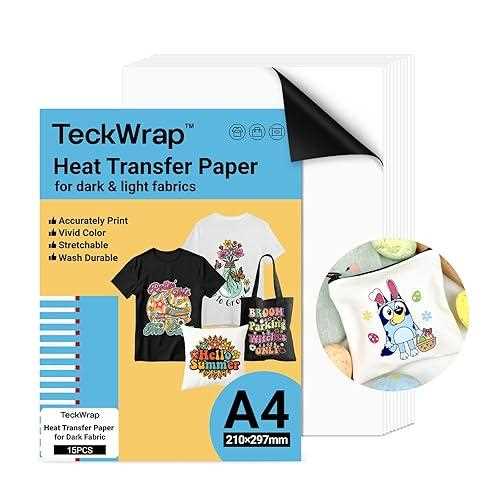
Start by considering the surface you’ll be working with. For fabric, choose a transfer film designed for textiles, ensuring it bonds well without damaging the fibers. For hard surfaces like wood or ceramic, opt for a thicker variant that can withstand heat without peeling off. Check the product’s heat resistance–some materials can only handle lower temperatures, which may affect the final result if not matched properly with your heat press or iron settings.
Next, think about the complexity of your design. If you’re working with intricate details or fine lines, go for a smoother, thinner option that offers better precision during cutting. A glossy finish might suit more detailed work, but for softer, matte looks, select a more flexible variant. Don’t forget to check whether the product is compatible with your printer type, as some transfers are only compatible with inkjet or laser printers.
Preparing Your Design for Printing on Iron-On Materials
Ensure your design is mirrored horizontally before sending it to the printer. This step is critical because the final transfer will be flipped during application. Failing to mirror text or intricate graphics could result in a backward image on your fabric. Most design software, like Cricut Design Space or Adobe Illustrator, offer a simple option to flip horizontally, which can be done with just a few clicks.
Use a high-resolution file to avoid pixelation. For best results, work with at least 300 dpi (dots per inch). Low-resolution images can appear blurry when transferred, ruining the clean look of your design. If necessary, upscale the image before printing. Many software tools have built-in upscaling features, but be cautious as enlarging too much may still cause a decrease in quality.
When sizing your design, consider the dimensions of the item you are transferring onto. Ensure the design fits within the printable area of your chosen transfer material. Measure the fabric or surface where it will be applied and adjust the artwork to avoid oversizing. This way, you’ll avoid awkward cropping or unwanted edges.
Step-by-Step Guide to Printing on Iron-On Material
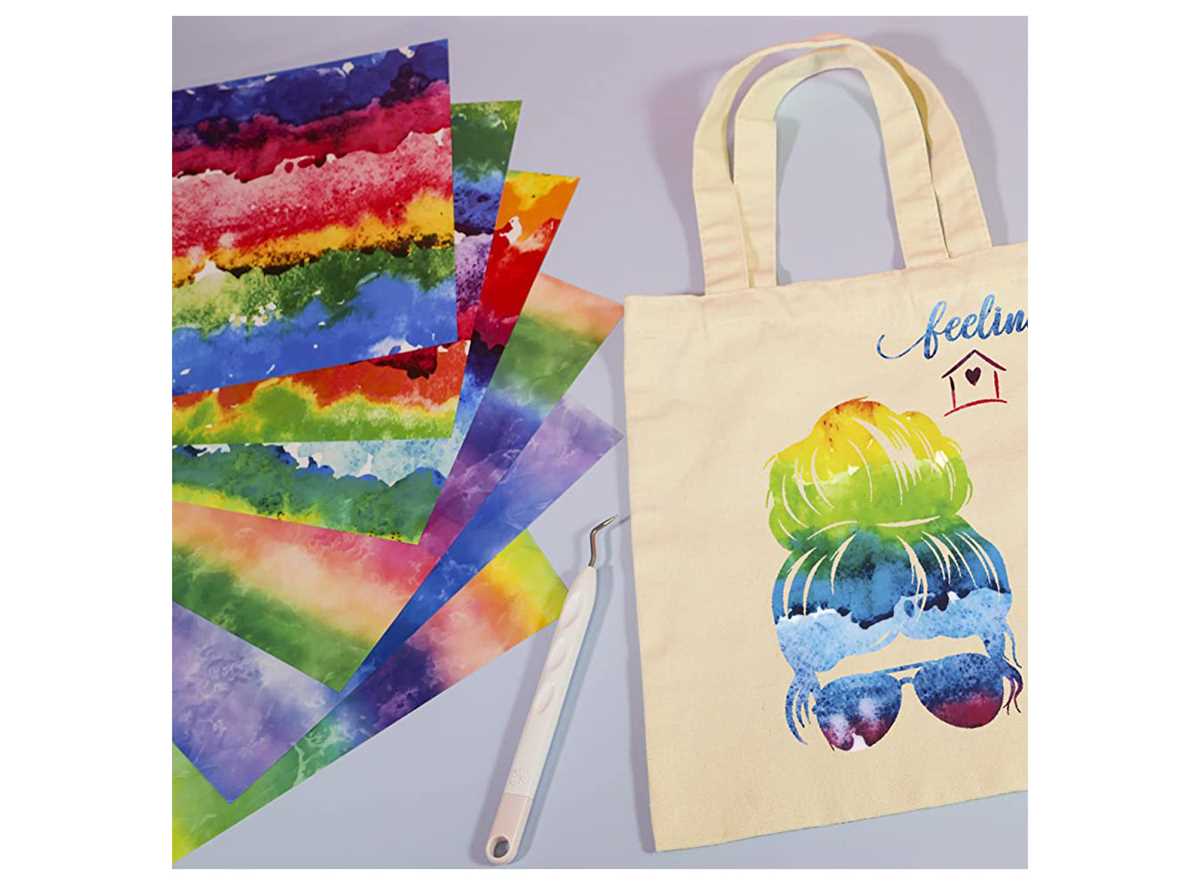
1. Prepare the Design: Begin by creating or selecting the graphic you wish to transfer. Make sure the design is formatted properly for your printer. If you are using text, flip it horizontally so that it appears correctly when applied to fabric. Check the resolution for clarity–300 DPI is ideal for sharp results. Use design software like Adobe Illustrator or Cricut Design Space for precise work.
2. Load the Sheet into the Printer: Place the transfer paper into your printer, ensuring the correct side faces up. This is often the shiny side. Check the printer settings to match the type of media being used–typically, “Heavyweight” or “Iron-On” in the print options. Run a test print on regular paper to avoid wasting the transfer material.
3. Print the Design: Print your design on the transfer sheet. Use the highest quality setting available to ensure the colors are vibrant and the lines are crisp. Allow the ink to dry completely before handling to prevent smudging.
4. Cut the Design: After printing, trim the excess material around your design using scissors or a craft cutter. If you are using a cutting machine, ensure the software is set to cut only around the image and not into the design. Leave a small margin to avoid cutting into the edges of your design.
5. Transfer to Fabric: Heat your iron to the appropriate temperature as indicated in the transfer material instructions, usually around 300°F (150°C). Place the design face down on the fabric. Press down firmly with the iron, using even pressure for 20-30 seconds. Allow the design to cool before peeling off the backing. Ensure the edges are well adhered by gently pressing them with the iron once more.
How to Transfer Iron-On Vinyl onto Fabric
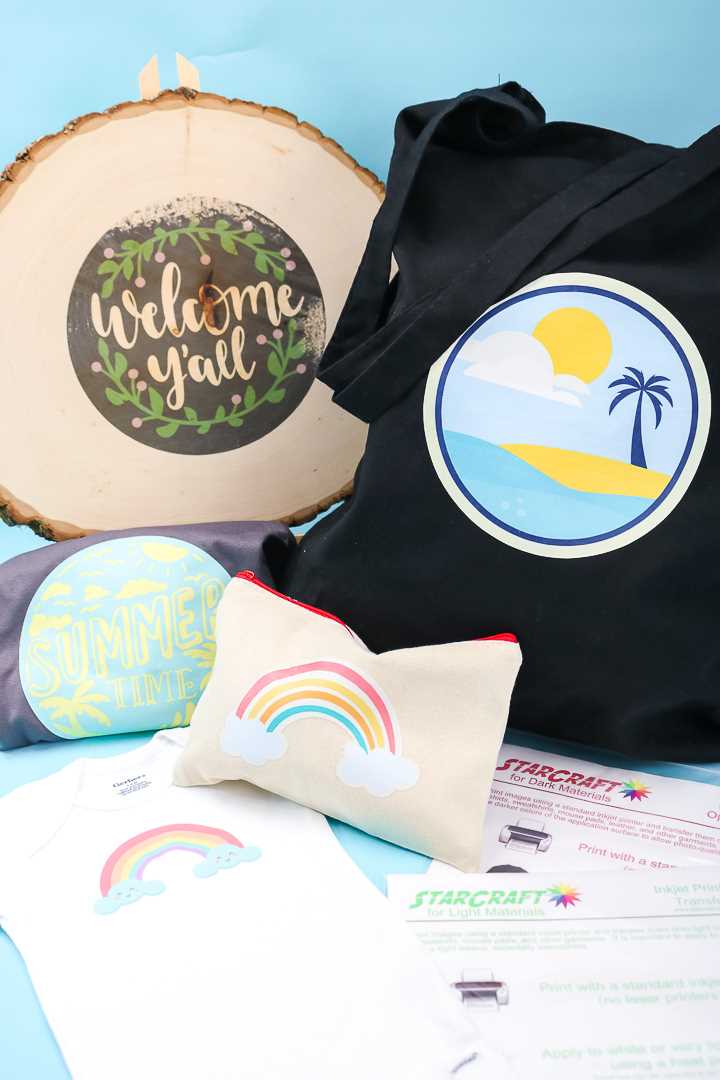
Preheat your heat press or iron to the recommended temperature (usually between 300°F and 320°F) for the material you’re working with. Ensure the fabric is clean and dry to help the adhesive bond properly. If you’re using an iron, set it to the cotton setting, but do not steam.
Place the design face down on the fabric, making sure it is aligned properly. Use a piece of parchment paper or a protective sheet over the design to prevent direct contact with the heat source. Apply firm pressure for the required amount of time, typically 15 to 30 seconds, depending on the material.
After pressing, carefully peel off the backing paper. If the design isn’t fully adhered, press again for a few more seconds. Always check the edges of the transfer to ensure the design has bonded securely before proceeding.
- For fabrics with uneven surfaces, like knits or stretch fabrics, adjust the pressure to accommodate the stretch.
- Test on a small section of fabric first if unsure about compatibility.
- Let the design cool for a few minutes before handling to prevent shifting.