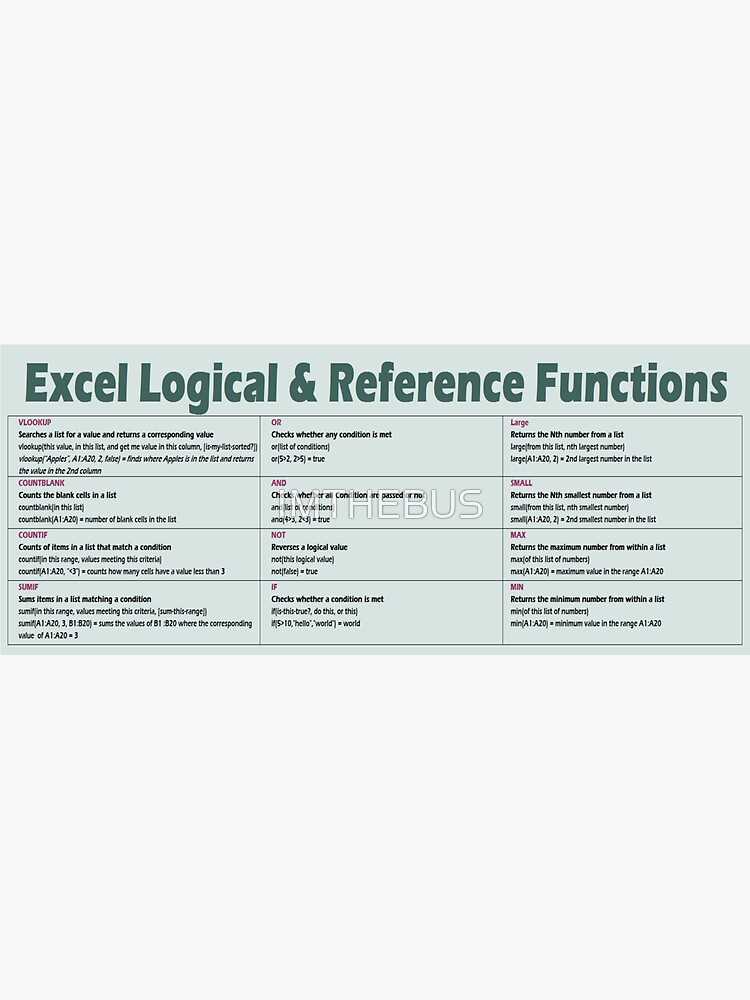
If you’re looking for a handy guide to streamline your workflow with powerful calculations, this list will provide you with quick access to the most useful commands. Whether you’re tracking expenses or analyzing data trends, knowing how to leverage these formulas can save you significant time.
One of the most practical tips is to use SUM for adding multiple numbers quickly. For example, if you need to calculate the total of several cells, just use =SUM(A1:A10). This can easily be expanded across rows or columns to handle larger datasets.
Another useful tip is applying the IF function, which allows you to create conditional statements. This function works by testing whether a condition is true or false, and returning one value if true, and another if false. For instance, =IF(B2>50, “Pass”, “Fail”) will evaluate whether the value in B2 is greater than 50 and return “Pass” or “Fail” accordingly.
For those dealing with time calculations, DATEDIF is invaluable. It computes the difference between two dates, which is perfect for determining how many days, months, or years have passed between them. For example, =DATEDIF(A1, A2, “d”) will give you the number of days between the dates in A1 and A2.
Lastly, don’t overlook the power of VLOOKUP, which enables you to search for a value in one column and return a corresponding value from another. This is incredibly useful for managing large datasets, especially when you need to cross-reference data. Simply use =VLOOKUP(B2, A1:D10, 3, FALSE) to look for a match in column B and retrieve data from the third column of your selection.
HTMLExcel Formula Reference Guide for Quick Access
Begin with mastering basic cell references. Absolute references, denoted by the dollar sign ($), allow you to lock a specific row or column. For instance, using $A$1 ensures that the reference stays fixed, even when the formula is copied to other cells.
Next, tackle arithmetic operations. Adding, subtracting, multiplying, or dividing is simple with operators: +, -, *, /. Complex expressions can be built by combining them, like =A1+B2*C3.
Logical tests are key to building dynamic workflows. The IF function checks conditions: =IF(A1>10, “Yes”, “No”). It returns different results based on whether the test is true or false, offering powerful conditional structures in any task.
Text manipulation is essential for data presentation. Use CONCATENATE to join multiple cells together, like =CONCATENATE(A1, ” “, B1). Alternatively, the more recent TEXTJOIN function simplifies this with delimiter options, such as =TEXTJOIN(“, “, TRUE, A1:B2).
To manage large datasets efficiently, aggregate functions like SUM, AVERAGE, COUNT, and MAX are indispensable. SUM calculates the total of a range, =SUM(A1:A10), while AVERAGE provides the mean value, =AVERAGE(B1:B10).
Array formulas allow multi-cell calculations with one formula. This is particularly helpful for advanced tasks like summing only specific values based on criteria. For instance, =SUM(IF(A1:A10>5, B1:B10, 0)) can sum all values in column B where the corresponding value in column A is greater than 5.
How to Quickly Sum Values with SUM Formula
To sum a range of numbers in a column or row, type `=SUM(`, then select the cells you want to add. Close the parentheses and hit enter. For example, `=SUM(B2:B10)` will add all values from B2 to B10.
If you need to add non-contiguous cells, separate the ranges with commas. Use a format like `=SUM(B2:B5, D2:D5)` to include both B2:B5 and D2:D5 in your total.
You can also sum entire columns or rows by referencing them. Use `=SUM(B:B)` to sum all values in column B or `=SUM(1:1)` for all values in row 1.
For a quicker calculation, select a range and check the status bar at the bottom-right corner for the sum without typing anything. If it’s not visible, right-click the status bar to enable it.
In case of blank or non-numeric cells, they are automatically ignored by the summing tool, so you won’t get errors. However, ensure there are no errors like #VALUE! in the selected range as they can prevent correct summation.
Using VLOOKUP for Fast Data Retrieval
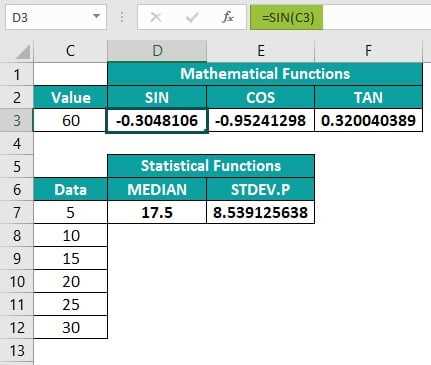
To quickly retrieve information from large data sets, the VLOOKUP function is your best choice. By specifying a lookup value, range, and column index, this tool finds the relevant data without searching manually. If you are working with product lists, customer records, or financial statements, VLOOKUP allows you to locate details in seconds.
Start with the lookup value, which can be any cell that contains the data you want to find. For instance, if you’re looking for a specific employee ID, that ID will be your lookup value. Then, determine the table where the information is stored–ensure this table includes the column that holds the answer you’re searching for.
The key to a smooth operation is the column index. This number refers to the position of the data within the selected range. For example, if your data set spans five columns, and the required information is in the third column, you would enter 3 as your index number. This ensures VLOOKUP knows where to pull the data from.
VLOOKUP also allows you to refine your search by adjusting the fourth argument: “range_lookup.” If you need an exact match, set this argument to FALSE. For approximate matches, TRUE (or leaving it blank) is suitable. By controlling this, you ensure your lookup is accurate and aligned with your needs.
Consider this common scenario: you have a list of sales representatives and their commission percentages in a table. If you want to quickly find the commission for a specific representative, VLOOKUP will pull the value from the corresponding column based on the name or ID you provide. This cuts down on time significantly.
When using VLOOKUP, keep in mind that it can only search for data to the right of the lookup column. If your desired information is located to the left, consider rearranging your data or using INDEX and MATCH functions as an alternative.
To avoid errors, ensure your lookup column is sorted in ascending order when using approximate matching. This minimizes the risk of retrieving inaccurate results. Also, watch out for “N/A” errors–these appear when the function cannot find the lookup value in the first column of your range.
In cases where multiple matches are possible, VLOOKUP will return the first match it finds. If you require all occurrences, you might need to explore other solutions, like filtering your data or using an array formula.
Mastering IF Statements for Conditional Logic
To build robust decision-making tools, leverage the IF function to test conditions and return specific values based on the result. The syntax is simple: =IF(condition, value_if_true, value_if_false). Start by testing a logical condition (e.g., A1 > 50), and based on whether it’s true or false, return the corresponding results. This allows you to create powerful, dynamic solutions for your data needs.
In case you need more complex logic, nest multiple IF functions within each other. This is done by including additional IF statements as the “value_if_true” or “value_if_false” argument. For example, =IF(A1 > 50, “High”, IF(A1 > 30, “Medium”, “Low”)) will classify the value into three categories: High, Medium, or Low. Each nested IF adds a layer of logic, allowing for multi-tiered decision-making.
| Condition | Result |
|---|---|
| A1 > 50 | “High” |
| 30 | “Medium” |
| A1 | “Low” |
For scenarios that require comparing multiple conditions, the AND and OR functions can be integrated with IF. For instance, =IF(AND(A1 > 50, B1 50, B1
COUNTIF vs SUMIF: Which One to Use?
Use COUNTIF when you need to count the number of cells that meet a specific condition. This function will give you a total count of how many entries match your criteria, making it ideal for tasks like counting how many times a specific value appears in a list.
On the other hand, SUMIF is designed to add up the values in cells that meet a certain condition. If your task involves summing numbers based on a specific criterion (e.g., total sales for a particular region), SUMIF is your go-to tool.
In cases where you’re dealing with non-numeric data and only need to know how many occurrences of a specific text or category exist, COUNTIF is more appropriate. It won’t give you any numerical totals but will tell you how many times a condition is met.
When your goal is to perform arithmetic calculations like summing revenue for certain categories or total expenses within a specific time frame, SUMIF is the right choice. It works especially well when you have a separate range of values to sum based on criteria in another range.
If you need to count the number of entries based on multiple conditions, use COUNTIFS. This function extends the capabilities of COUNTIF to handle more than one criterion at once.
Similarly, SUMIFS allows for summing values with multiple conditions. This is useful if you need to sum numbers that meet more than one specific criterion, such as sales made in a certain month for a particular salesperson.
In summary, COUNTIF counts occurrences of values matching criteria, while SUMIF calculates totals based on specific conditions. Choose COUNTIF for counting and SUMIF for summing values based on conditions.
To optimize your work, make sure to select the function that matches your end goal–whether you’re counting data or performing arithmetic operations based on conditional criteria.