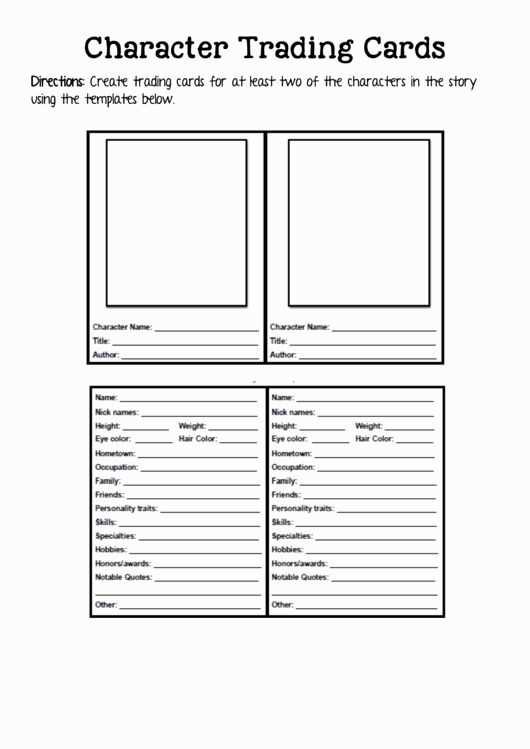
If you’re looking to create your own collectible designs at home, the key is in understanding how to arrange and customize visual elements for a truly personal creation. Whether for a hobby or an organized collection, it’s crucial to have a solid structure for each card’s layout. This allows for consistency across all pieces and ensures they look professional when printed. Use grids to structure essential details, such as names, attributes, and images. This will help keep things neat and easy to read.
Start by choosing the right paper weight for a sturdy feel once printed. A heavier cardstock will provide a more durable finished product, ensuring your creations hold up over time. Make sure to adjust margins and alignment for smooth cuts along the edges, minimizing wasted space and making trimming easier. You can also experiment with borders or background colors to give your items a unique flair. Designing with precision is the key to achieving the polished look of a physical collectible.
Incorporate space for text that describes your item or character. Opt for a readable font size and style, avoiding excessive text that could overcrowd the layout. Adjust the font weight and spacing to create balance between images and information. Experimenting with different color schemes and graphic styles can add a personal touch that aligns with your collection’s theme, while maintaining readability. Aim for a clean, organized design that still stands out visually.
Trading Card Template Printable Guide
For a high-quality result, use a document editing software that supports layering and precise alignment, such as Adobe Illustrator or InDesign. Ensure your art and text fit within the designated borders to prevent any content from being cut off during printing.
When selecting paper, choose a durable cardstock with a weight between 250-350 gsm. This weight ensures the final product has a sturdy feel, preventing bending while maintaining a professional look.
Standard dimensions for most collectible cards are 2.5 x 3.5 inches, but you can customize these measurements to suit your needs. Pay close attention to margin spacing, keeping a consistent buffer around the edges to create a balanced design.
If you’re adding text, such as player stats or item descriptions, use a clear, legible font. Opt for sizes between 8-10 pt for regular text and larger sizes for headings. Avoid too much clutter, as readability should remain a priority.
For vibrant colors, always use CMYK color mode when preparing your files for printing. This ensures that the colors will look accurate once transferred onto paper. Test a sample print before committing to a full run to verify color fidelity.
After printing, consider trimming edges with a sharp blade or using a paper cutter for clean, straight lines. If you’re assembling a set, group them into small batches for easier handling and storage.
How to Create Custom Trading Card Templates in Word
Begin by opening Microsoft Word and choosing a blank document. This will provide the clean slate you need for your design. To set up dimensions, go to the “Layout” tab and adjust the page size, typically 2.5″ x 3.5″ for most designs. If you want multiple items per page, use the “Margins” section to reduce them and make space for a grid layout.
Use the “Insert” tab to add shapes, such as rectangles, which will represent the boundaries of your design. You can resize these shapes to match the size you set for your design. This will help define where the content should go, such as images, text, or logos. Use the “Shapes” option to create borders, buttons, or other decorative elements you wish to include.
To maintain consistency in design, use Word’s table feature to create a grid for positioning your content. Create a table with columns and rows that match your intended layout, adjusting the size of the cells to fit the objects you plan to insert. This is a simple way to ensure everything aligns properly without overlapping.
Now, add text placeholders within the grid. Use text boxes or directly type in cells. You can format the text by selecting font types, sizes, and colors, based on the theme you’re aiming for. Consider using bold or italic styles for specific categories like titles or stats. This makes it easier to personalize each piece in the future.
For visuals like icons or images, go to the “Insert” tab and select “Pictures.” Once inserted, resize the image to fit within the borders of your design. Ensure the images have transparent backgrounds if you want a cleaner, non-boxy look. You can also crop or edit them directly in Word for better integration into your layout.
Use Word’s alignment tools to center and organize all elements. Highlight text and images, then click on the “Align” button under the “Format” tab to ensure everything is well-positioned. This step is crucial for creating a polished look, as misalignment can create an unprofessional appearance.
Once your design is complete, save the document as a template. This way, you can easily modify the text and images for future creations without starting from scratch each time. To print, select the “Print” option, making sure to adjust the settings to match the paper size and number of items per sheet.
Best Websites for Downloading Free Custom Design Files
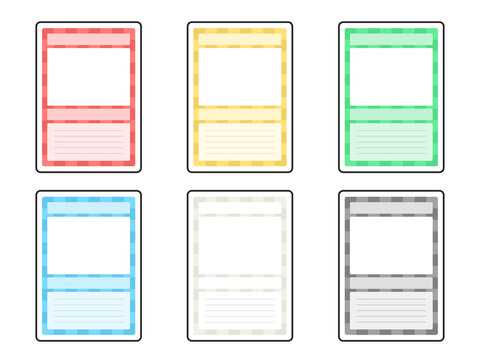
If you’re looking for high-quality designs for your collectible items, check out Template.net. This website offers a large collection of layouts in various formats, including options for custom dimensions. You can easily download what you need in PDF, PNG, and JPG formats, making it a versatile choice for printing or editing. It provides a wide range of aesthetic options, so you can find designs that suit various themes, from minimalistic to vibrant.
Canva stands out with its user-friendly interface and vast library of free and customizable options. Although known for its online design tools, Canva also allows you to download ready-to-print files in multiple formats. Its drag-and-drop features make it easy for anyone to modify the designs, add personal touches, and adjust the size to your specifications. Perfect for quick edits and personal projects.
If you’re after more flexibility, Freepik offers a huge collection of vector images and pre-designed graphics. With an extensive selection, you’ll find free and premium assets that cater to various themes, colors, and design aesthetics. Although it might require creating a free account, the platform provides access to thousands of layouts you can download and edit in programs like Adobe Illustrator or Photoshop.
Crello (now VistaCreate) is another excellent resource, offering free and editable design files. Its library is full of modern designs, and it supports both print-ready formats and digital adjustments. You can create your custom artwork using the available templates or start from scratch, with the platform’s easy-to-use tools guiding you through the process.
For a more straightforward approach, Lucidpress provides an intuitive platform with drag-and-drop functionality. You can choose from various premade designs and adjust them as needed. After making adjustments, you can download your work in PDF or image formats, ideal for physical printouts. Lucidpress also allows for team collaboration, so it’s a great option if you’re working on a group project.
If you’re interested in minimal effort and more design freedom, check out Adobe Spark. While it’s typically known for its online design creation tool, it offers free downloadable layouts as well. After selecting a template, you can easily customize colors, fonts, and visuals to match your needs. It’s perfect for those who want simple, clean designs with the freedom to edit as required.
Choosing the Right Paper for Printing Collectible Cards
For a durable, high-quality finish, use 300 gsm cardstock. This thickness ensures that your designs are crisp, while the stiffness of the paper prevents bending or creasing. Look for a paper that can handle rich color printing without distortion, maintaining the integrity of your images and text.
Matte finish papers work well for cards that need a non-reflective surface. This type of paper prevents glare, making the details easier to read in various lighting conditions. It’s a great choice for high-end designs where clarity and texture are prioritized over glossiness.
For a polished, sleek appearance, opt for gloss-coated paper. This type gives a shiny surface that enhances color saturation and makes images pop. However, keep in mind that the glossy finish can lead to smudging, so ensure your printer settings are optimized for this paper type to avoid fingerprint marks.
- Coated papers are ideal for vibrant colors and precise details.
- Uncoated papers give a natural, textured feel, perfect for vintage or handmade styles.
- Paper weight should be consistent with the desired card sturdiness; 270-350 gsm is a good range for sturdy results.
When selecting the right paper, consider the printer compatibility. Not all printers handle heavyweight paper well, so check the manufacturer’s guidelines to avoid issues like paper jams or poor print quality. Test different paper types before finalizing your choice for the best results.
How to Resize Card Templates for Different Sizes
To adjust your design for various dimensions, use a photo editing software that allows for precise resizing. Start by setting the resolution at 300 DPI (dots per inch), which is standard for high-quality print output. Afterward, change the canvas size to match the target dimensions, such as 2.5 x 3.5 inches for a standard product. Make sure to uncheck the option to “constrain proportions” so the width and height can be adjusted independently, preventing distortion of the artwork.
Once resized, inspect the edges for any unwanted stretching or shrinking. If necessary, crop the image to ensure the composition remains centered and fits the new dimensions. If you plan to print multiple items on a single sheet, use a layout tool to arrange the designs evenly, allowing for proper margins between each. This ensures that none of the content gets cut off or misaligned during printing.