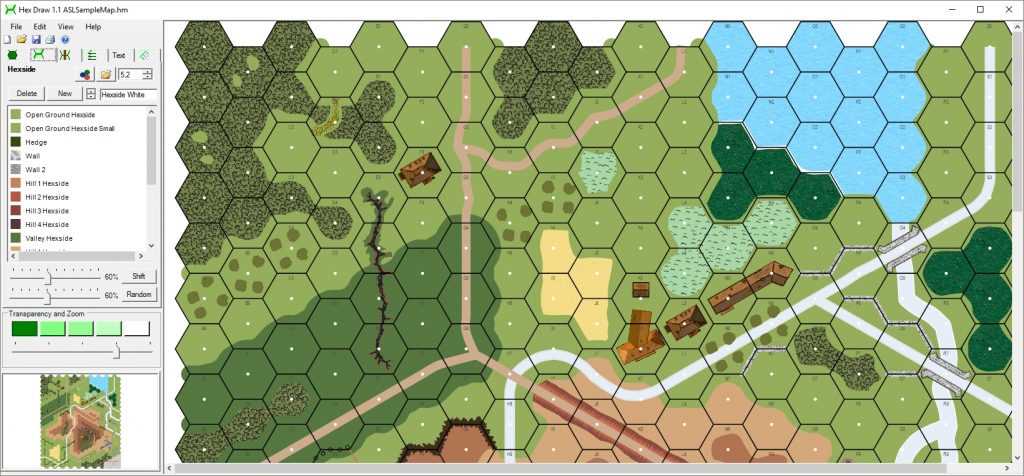
For tabletop enthusiasts, customizing your playing surface can significantly enhance the gaming experience. A grid system allows for accurate movement tracking and precise placement of pieces. To start, download a basic grid template, then adjust it to fit the scale and style of your game. It’s best to choose a layout that aligns with the type of terrain or environment you’re simulating, be it a dungeon crawl or a wilderness exploration.
Use a high-resolution image or vector file to ensure that the design prints clearly at your desired size. Most graphics software enables you to modify the grid’s dimensions, making it adaptable to different scales, such as large battlefields or tighter indoor spaces. Make sure to select the right paper quality to prevent tearing or distortion during gameplay.
Consider adding texture or visual elements to differentiate between various areas on the surface. This can range from simple icons or terrain marks to more elaborate designs like water bodies, mountains, or buildings. By layering these details over the grid, you give players a clearer view of the environment, improving immersion. Additionally, prepare a version that can be printed in black and white for convenience, or opt for color to make the map visually striking.
Once you have a finalized template, print it on large-format paper or assemble smaller sheets together for larger spaces. This method allows for flexibility and ease of transport without compromising on the game’s playability.
Creating Your Custom Grid for Printing
To begin designing a layout for your project, start by determining the dimensions you need. Use a simple spreadsheet program or drawing tool to define the size of each individual shape, ensuring they fit the scale you desire. The most common approach is to create a repeating grid of shapes with uniform measurements, such as 1 inch by 1 inch, to guarantee consistency. Ensure that the borders are clearly defined for easier printing.
Next, focus on the alignment and arrangement. Precision matters when laying out the grid, as misalignment can disrupt the overall structure. If your goal is to print at a larger scale, check that the units remain accurate in both horizontal and vertical directions. Set up margins to leave enough space for cutting or additional design elements that may be added later.
Once the base is in place, you can enhance the design with additional details. Consider adding numbered coordinates or labels along the edges to facilitate easier referencing when using the printed grid. Customization options include adjusting the shading, color patterns, or adding texture to each individual shape to differentiate various zones. The more detail you add, the more versatile your creation becomes.
For larger projects, scale the file appropriately to avoid distortion when printing. Always check the resolution to ensure a high-quality printout. If the design is intended for interactive or educational purposes, including a legend or instructions might be necessary for clarity. Print a small test section first to verify proportions before committing to a full print run.
Finally, consider using materials suited to your printing method. For instance, heavier paper stocks work better for projects that require durability, while thinner sheets are more cost-effective for one-time uses. If you’re working on a design that needs to be repeated multiple times, a professional print service could offer more precise cuts and a cleaner finish.
How to Design a Custom Printable Hex Map for Your Game
Choose a grid size that suits your needs. A common choice is 30×30 cells, but consider how many pieces or elements you plan to fit. Too many can crowd the space, while too few may not provide enough complexity for the gameplay. Adjusting the size will directly affect the level of detail and usability.
Decide on the scale of the individual spaces. A typical size ranges from 1 inch to 2 inches per cell, depending on how large you want your tokens or markers to be. Larger cells provide more room for intricate designs, but may require more paper space.
For the layout, experiment with staggering your shapes. Instead of a uniform grid, offsetting every second row can add a more dynamic feel to the design, especially for visual appeal. This technique creates a more fluid and natural flow, often making it easier to understand and use in practice.
Pick a visual theme. Whether it’s fantasy, sci-fi, or historical, the appearance of the spaces should align with your setting. Colors, textures, and patterns can reinforce the atmosphere. For example, grassy or rocky textures work well for outdoor environments, while metallic or futuristic designs suit sci-fi themes.
Include borders and markers for zones. Defining areas with lines or different shading can help to separate territories or regions. This can assist players in recognizing where specific actions can happen or where different rules apply. Keep these visual indicators subtle, so they don’t overwhelm the design.
Consider creating a legend for your design. If certain cells represent unique elements like forests, mountains, or buildings, having a key for quick reference helps players understand the purpose of each section without confusion. This can be as simple as a small chart or icons placed in a corner of the page.
Finally, test your creation before printing. Print a draft version on standard paper to see how everything fits together. Make any necessary adjustments to ensure the design is both functional and visually appealing. Consider printing multiple versions with minor alterations to find the best layout for your needs.
Choosing the Right Software to Create Custom Grid Templates
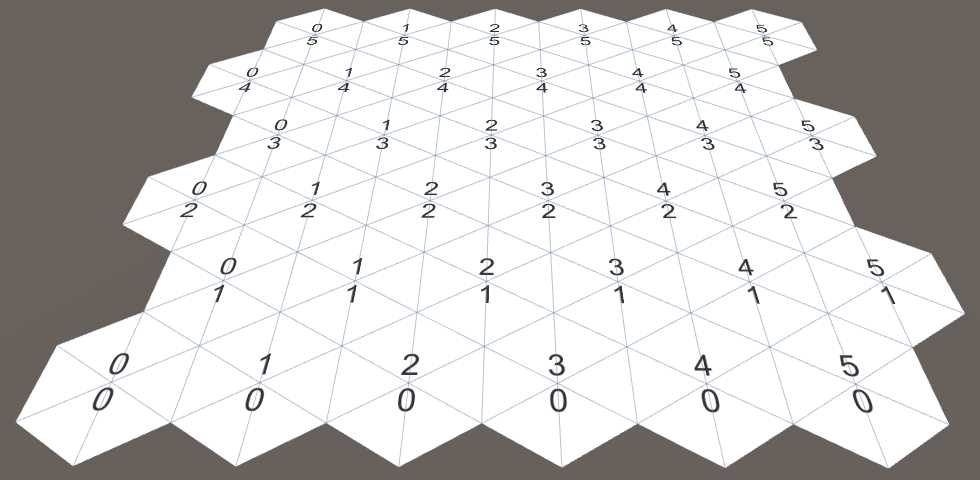
Start with “Tiled,” a reliable tool that allows you to design grids with precise control over shape and size. It’s lightweight and can generate patterns with ease. This software supports a variety of configurations and allows exporting in multiple formats, ideal for printing physical layouts. The straightforward interface makes it suitable for both beginners and advanced users.
For a more advanced approach, “Inkscape” provides vector-based tools to design intricate patterns. You can create scalable images, making it perfect for adjusting grids for different print sizes. With the help of extensions, it can generate a wide range of grid types and allows full customization, from the border design to fill patterns.
If you’re looking for a program with a focus on simplicity, “Hexographer” might be a solid choice. It offers an intuitive layout and specializes in generating hexagonal patterns. While it doesn’t have as many design features as more complex tools, it’s a great option if speed and ease of use are priorities.
Another option is “GIMP,” which is a powerful image editor that allows creating custom grids with manual placement. Although it requires more effort than automated tools, its flexibility is a plus for creating unique grid designs. With its ability to handle layers and transparency, you can craft custom elements within the grid and export to various formats.
| Software | Features | Best for |
|---|---|---|
| Tiled | Grid patterns, multiple export formats, easy interface | Beginners, speed-focused design |
| Inkscape | Vector-based design, scalable, extensions for custom grids | Advanced users, scalable designs |
| Hexographer | Pre-designed templates, simple interface | Quick and simple hex designs |
| GIMP | Layer management, manual grid creation | Custom, detailed grid design |
Printing Your Game Board: Best Paper Types and Printer Settings
Selecting the right paper is key for a clear, durable output. Opt for heavyweight cardstock (180–250 gsm) for rigidity, which will prevent warping during extended use. This thickness is ideal for ensuring your design holds up when folded or placed under pressure. A lighter paper may feel flimsy and distort colors, diminishing quality.
If you want more texture, consider linen or textured paper. This can add a premium feel to your layout, though it may require fine-tuning of print settings to avoid visible imperfections. A smooth matte finish typically gives the sharpest result without unwanted glare or reflections under light.
When choosing between glossy or matte finishes, matte paper is recommended for ease of writing and readability. Glossy paper, while vibrant, can make the design appear overly reflective and harder to use for marking or noting changes. For maps that will be marked often, matte is the clear winner.
Printer resolution plays a critical role in sharpness. Set your printer to the highest available setting–usually 1200 dpi. This ensures that even the smallest details, like borders and labels, are printed with precision. Lower resolutions will blur fine lines and make small text unreadable.
If you’re using a laser printer, it’s best to adjust the settings to “thick paper” to prevent jamming. Laser printers handle heavy paper types better than inkjets, especially for large formats. Ensure your printer tray can accommodate the paper size and thickness you’ve chosen.
For inkjet printers, choose the appropriate paper type in the print settings to avoid excess ink smudging or bleeding. A “photo paper” or “matte paper” setting will help the ink dry properly and prevent blurring. Always let the print dry completely before handling to avoid streaking.
When printing large formats, consider tiling the design into smaller sections. Software like Adobe Acrobat or GIMP allows you to split your print job into manageable tiles, ensuring that even oversized boards can be printed without sacrificing detail or quality.
Finally, check your color settings before printing. Use the RGB color mode for digital designs and adjust brightness and contrast if colors appear dull or overly dark. Calibration of your printer may be necessary to ensure accurate color reproduction, especially if you want your board to match a specific palette.