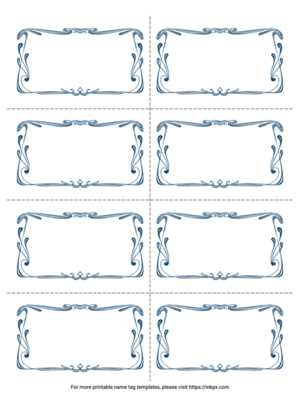
Start by selecting the right paper for your task. Opt for sturdy sheets, typically 200-250 gsm, to ensure the labels hold their shape and resist tearing. If you’re printing in color, make sure the paper is compatible with your printer type–laser or inkjet. For a professional finish, use a glossy or matte coating depending on your preference.
Choose a design tool or template that allows you to create personalized labels with ease. Many software programs offer pre-designed formats, but always double-check measurements to avoid misprints. Aim for a clear, legible font size, ideally between 12 to 18 points, ensuring visibility from a distance. Add minimal elements to avoid clutter while maintaining a polished look.
After designing, ensure that your printer settings match the size and layout of the paper you’re using. Adjust the margins and print in test mode to confirm that everything is aligned. Printing multiple sheets? Load them carefully, ensuring they sit flat in the tray to avoid paper jams and uneven prints.
Once printed, cut the items out carefully, using a sharp knife or scissors for precision. If you’re handling multiple units, consider investing in a cutting tool to save time and improve consistency. If durability is a concern, laminate them for added protection against wear and moisture.
By focusing on these steps, you’ll create custom identifiers that not only look good but also serve their purpose with efficiency and reliability.
Printable Name Tags: A Practical Guide
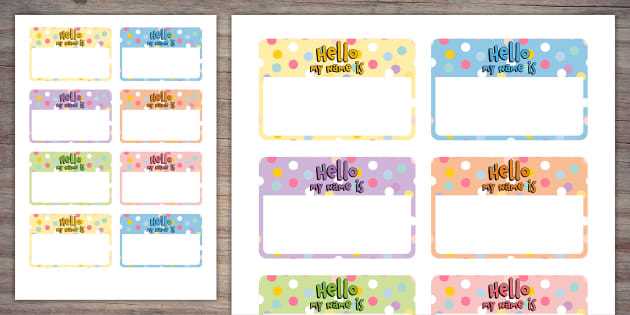
For quick customization, use pre-designed templates from word processing software like Microsoft Word or Google Docs. These allow you to insert names easily and adjust the layout as needed. Make sure to use a high-quality printer to ensure clear text and crisp lines.
If you’re aiming for a more polished look, opt for adhesive sheets. Many office supply stores sell templates that can be loaded directly into your printer. Choose a sheet size that aligns with your needs–this way, there’s no wasted paper.
Consider the type of event when selecting the format. For casual gatherings, a simple block font might suffice. For corporate meetings or conferences, more formal fonts like serif types convey professionalism. Adjust the text size for readability without overcrowding the space.
To streamline the process, use the “merge” function available in most software. This feature lets you import a list of names from a spreadsheet, automatically generating labels without manual entry, saving significant time for large groups.
Ensure the labels have enough contrast with the background color to maintain legibility. Dark text on a light background works best in most settings. Avoid overly bright colors that may strain the eyes, especially in well-lit environments.
If reusable options are desired, consider laminating your printouts. This makes them more durable and suitable for events requiring frequent re-use. Laminated labels can also be more eco-friendly, reducing waste from disposable ones.
For events requiring larger text or more prominent identification, consider using larger fonts or even placing the text within a frame or border for added emphasis. This is especially useful for conferences, where clear identification is key.
Always test print on a regular sheet before using the actual label paper. This ensures everything aligns correctly and avoids wasting specialized paper. Adjust your printer settings as needed to achieve the best results without cutting off any important details.
HTML
Choosing the Right Template for Your Name Badges
Focus on the size and layout of the badge when selecting a template. A standard size like 3.5 x 2 inches fits most events, but for larger conventions, a bigger option might be better. Choose a layout with a clear, balanced structure, ensuring the text is legible without overcrowding the design.
If the event requires quick identification, prioritize templates with larger text and minimal decoration. This enhances visibility from a distance. For formal settings, opt for clean, professional templates with subtle elements that convey authority without distractions.
Customization options in the template are key. Look for designs that allow easy adjustments to font styles, colors, and placement. Templates that offer flexibility will let you align the text perfectly and match the event’s theme without losing clarity.
Consider how the design interacts with the material being used. Some badge holders might require templates with rounded corners or specific proportions for easy insertion. Check for templates that fit seamlessly within your chosen holders to avoid alignment issues.
Lastly, evaluate the software compatibility of the template. Ensure it integrates smoothly with your printing setup, whether you’re using standard office printers or specialized devices. Templates that are compatible with tools like Microsoft Word, Google Docs, or Adobe software will save time and reduce errors.
How to Customize Your Name Tags for Different Events
For corporate meetings, use a minimalist approach. Choose a clear font with large text for easy reading from a distance. Avoid using elaborate fonts or too many colors, as they can distract from the purpose. Stick to a simple color scheme that matches the event’s branding–often black, white, or shades of grey work best. Consider adding the attendee’s company logo to reinforce the brand identity without cluttering the design.
For casual gatherings like parties or informal networking events, personalize the badges with playful fonts or creative illustrations. Add a small icon or graphic that represents the event’s theme, like a microphone for a seminar or a drink for a cocktail party. This helps guests feel more connected to the event while adding a touch of fun to their identity. Using bright colors or patterns can make the badges stand out, making it easier for people to identify each other.
- Keep it legible: font size should be large enough to read easily.
- Use event-related graphics or icons to make it relevant.
- Avoid overcomplicating with too many colors or designs.
- Ensure the material is durable for events lasting several hours.
Best Software Tools for Designing Custom Labels
Canva stands out for simplicity and flexibility, making it a great option for quick creation of personalized ID holders. The platform offers pre-designed templates for various sizes and styles, making customization fast. With an intuitive drag-and-drop interface, users can upload logos, icons, and photos with ease. Canva’s free version is suitable for most users, but premium features are available for advanced options like branded fonts and designs.
For more advanced users, Adobe Illustrator remains a go-to tool. Its vector-based design capabilities allow for high precision and customization. You can create complex layouts with scalable graphics that won’t lose quality. Illustrator is particularly useful for professionals who need intricate designs, while its extensive library of plugins ensures compatibility with different printing systems.
Microsoft Word offers a basic yet reliable solution for creating ID holders. While not as sophisticated as other options, its simplicity makes it ideal for those with limited design experience. Word provides pre-made templates for easy setup, and the design tools are sufficient for adding text and basic shapes. For users who prioritize speed and efficiency without needing complex features, it’s a viable choice.
Inkscape, a free and open-source alternative to Illustrator, provides a powerful vector graphic editor for label creation. Its diverse range of tools, from paths to gradients, helps users achieve professional-grade designs. With a steep learning curve, it’s more suited to experienced designers who need fine control over their projects but don’t want to invest in expensive software.
| Software | Key Features | Best For |
|---|---|---|
| Canva | Templates, Drag-and-Drop, Easy Customization | Beginners, Fast Projects |
| Adobe Illustrator | Vector Graphics, Professional Designs, Advanced Tools | Experienced Designers, Complex Projects |
| Microsoft Word | Pre-Made Templates, Simple Tools | Quick and Simple Tasks |
| Inkscape | Vector Editing, Open Source | Advanced Users, Custom Designs |
For those who require integration with business systems, Avery Design & Print is a practical solution. It simplifies the process of generating barcodes and variable data labels, ensuring accuracy and consistency. Avery’s online tool is user-friendly, offering templates for specific printer models, which can save time when preparing for mass production.
Affinity Designer offers a one-time purchase option that gives users a solid alternative to subscription-based services. It combines vector and raster graphics in one platform, allowing for flexible layouts. Its precision tools are on par with Illustrator but at a more accessible price point, making it a strong contender for those who need professional results without the ongoing cost.
Step-by-Step Instructions for Printing Name Badges at Home
Choose the right paper for printing. Use adhesive-backed sheets for easy sticking, or opt for cardstock if you need a sturdy option. Make sure the size of the sheets matches your template to avoid any issues during the print process.
Download and open a template compatible with your software. Common programs like Microsoft Word, Google Docs, or specialized badge-making tools offer pre-made designs. Ensure you select a template that fits the dimensions of your chosen paper.
Enter the details you want displayed on the badges. This includes the individual’s name, title, and any other pertinent information. Keep the font size legible and ensure the text aligns well within the boundaries of the design.
Check the layout carefully before printing. Ensure the text and images are correctly placed and that no information is cut off. You can adjust the margins, font size, or position of the text if needed to fit better within the badge design.
Load your paper into the printer. Make sure the printer is set to the correct paper size and type. If using adhesive paper, check that it’s loaded with the printable side facing up. For non-adhesive options, ensure the paper is inserted in the proper orientation to avoid print errors.
Print a test page first. Before printing a full batch, use a blank sheet to check how the design appears on paper. This will help you adjust any settings and avoid wasting paper or ink.
Print the badges. Once satisfied with the test print, go ahead and print the final copies. If you’re printing multiple badges, it might be helpful to print one sheet at a time to avoid alignment issues.
Cut out the printed pieces carefully. Use a paper cutter or scissors for clean edges. If you’re using adhesive sheets, peel off the backing and apply the badges where needed. For cardstock, you can attach them to lanyards, holders, or simply use them as standalone pieces.