Start by selecting a design tool that suits your needs. Programs like Adobe Illustrator, Microsoft Word, or free online platforms such as Canva offer templates and flexibility. If you aim for precision and customization, Adobe Illustrator is a top choice, while Word works for basic tasks.
Ensure your document’s dimensions match the paper size you plan to use. Standard letter size is 8.5 x 11 inches, but you may need to adjust for different formats like A4 or custom sizes. Be mindful of bleed areas and margins if your design extends to the edge of the paper.
Text clarity is key. Choose readable fonts, adjust spacing, and use a hierarchy of headings and body text for easy navigation. Avoid clutter and maintain consistency throughout the design. High contrast between text and background improves legibility, especially in printed form.
Graphics should complement the design, not overwhelm it. Use high-resolution images, preferably 300 DPI, to ensure they print clearly without pixelation. Vector-based illustrations are ideal for scalability without loss of quality. Keep file sizes manageable for easier printing.
Once your file is complete, export it in a print-friendly format, such as PDF. This ensures your document’s layout remains intact when printed. Most printing services prefer PDFs due to their consistent formatting across different devices.
Before mass printing, always print a test copy. This helps spot any issues with alignment, color accuracy, or text placement. Adjust as needed to avoid wasting materials and time on a large print run.
How to Design a Document for Printing
First, choose the appropriate software to match your project’s needs. For a simple document, programs like Microsoft Word or Google Docs can work well. However, for detailed designs, such as flyers or invitations, graphic design software like Adobe InDesign or Illustrator is recommended.
Next, set up the correct document size. Standard sizes such as 8.5 x 11 inches (letter) or 8.27 x 11.69 inches (A4) are commonly used, but depending on the project, you might need to select a custom size. Always remember to leave space around the edges for margins.
Use the right resolution for your images. Images that will be printed should have a resolution of at least 300 DPI (dots per inch). This will ensure they appear crisp and clear once printed. Avoid using low-resolution images as they may appear pixelated when printed.
For text, choose legible fonts and ensure proper sizing. Keep the body text at around 10-12 pt, and use larger sizes for titles or headings. Stick to no more than two or three font styles within the design for consistency and ease of reading.
Incorporate high-quality graphics or illustrations that align with the document’s purpose. If you’re using logos or icons, ensure they are vector files, as they won’t lose quality when resized. Avoid cluttering the design with too many images, and make sure everything serves a clear purpose.
Once you have finished designing, export the file in a format suitable for printing, such as PDF. This format preserves the layout, fonts, and images exactly as intended. Most printing services prefer PDFs because they’re universally compatible and easy to work with.
Before sending the file to print, always preview it to check for any alignment issues, color mismatches, or text errors. Printing a test copy on your own printer can also help identify problems early. Small errors in layout or font sizes can be costly when printed in large quantities.
After confirming everything is correct, you’re ready to print. Whether you’re using a professional service or a home printer, ensure the paper is compatible with your document type. For high-quality results, choose a heavier paper stock if possible, as it often gives a more professional feel.
Choosing the Right Software for Designing Printables
If you’re looking for a simple design, Microsoft Word or Google Docs can handle basic layouts with ease. These tools are user-friendly, especially for creating flyers, brochures, or checklists. However, they are limited when it comes to more intricate designs or advanced formatting options.
For more control over your design, Adobe InDesign is the go-to software for professionals. It offers precise layout options, text control, and advanced typography settings. InDesign also handles multiple page documents, making it ideal for projects like catalogs or multi-page newsletters.
Free alternatives like Canva are a great option if you need templates and don’t have access to paid software. Canva offers a wide range of ready-made designs for invitations, planners, and posters. The drag-and-drop interface is intuitive, and it supports high-resolution exports for printing.
For detailed graphics, Adobe Illustrator is an excellent choice. It allows you to create custom vectors, which are important for logos, illustrations, and high-quality images. Illustrator gives you complete flexibility in terms of scaling and resizing without losing quality.
Choosing the right tool depends on your specific needs. For simple documents, go with Word or Google Docs. For advanced designs, opt for InDesign or Illustrator. If you’re looking for something free and quick, Canva should be your choice. Each software has its strengths, so select based on your project complexity and design goals.
Setting Up the Correct Dimensions for Your Printable
Before beginning any design, ensure that the document size matches your intended output. Different print projects require specific dimensions depending on the format you choose. For example, standard letter size in the US is 8.5 x 11 inches, while A4 is the common size in most other countries. Choose the appropriate size based on where and how the item will be printed.
When designing for a specific purpose, be aware of the common sizes. For business cards, the typical dimensions are 3.5 x 2 inches. Flyers, brochures, and posters can vary, but make sure the chosen size fits the design and layout you have in mind.
| Size Type | Dimensions | Usage |
|---|---|---|
| Letter | 8.5 x 11 inches | General documents, letters, reports |
| A4 | 8.27 x 11.69 inches | International documents, academic papers |
| Business Card | 3.5 x 2 inches | Personal or company contact information |
| Flyer | 8.5 x 5.5 inches | Event or product promotion |
If you are printing at home, ensure your printer supports the size you’ve chosen. Many home printers only support letter or A4 sizes, so make sure your document fits these dimensions to avoid scaling issues.
For designs that bleed to the edge (e.g., full-color backgrounds or images), set the document size a bit larger than the final output. For example, if you are printing on letter-sized paper, set your design to 8.75 x 11.25 inches, and allow the printer to trim the excess. This prevents white borders around your design.
Additionally, account for margins. Most printers have non-printable areas along the edges, meaning anything placed too close to the edge may not be visible in the final print. A safe margin is usually 0.25 inches, but this can vary depending on the printer model.
Lastly, double-check your file before printing. Print a test page on standard paper to make sure the dimensions and layout look correct. If necessary, make adjustments before printing the final version to ensure high-quality results.
Adding and Formatting Text for Clarity and Readability
Choose fonts that are easy to read. For body text, use a simple sans-serif font like Arial, Helvetica, or Calibri. Keep the font size between 10pt and 12pt for readability. For headings, use larger sizes and a bolder style to differentiate them from the body text. Avoid using more than two or three different fonts in one design to maintain consistency.
Set proper line spacing to improve readability. The default single-spacing may be too cramped for printed materials. Aim for line spacing between 1.15 and 1.5 times the font size. Additionally, ensure there is enough white space between paragraphs to prevent the design from feeling crowded.
Use contrasting colors for text and background to make the content stand out. Dark text on a light background works best for clarity, but if using a dark background, light-colored text is essential. Always check readability by printing a test version to ensure the contrast is sufficient for comfortable reading.
Incorporating Images and Graphics into Your Printable
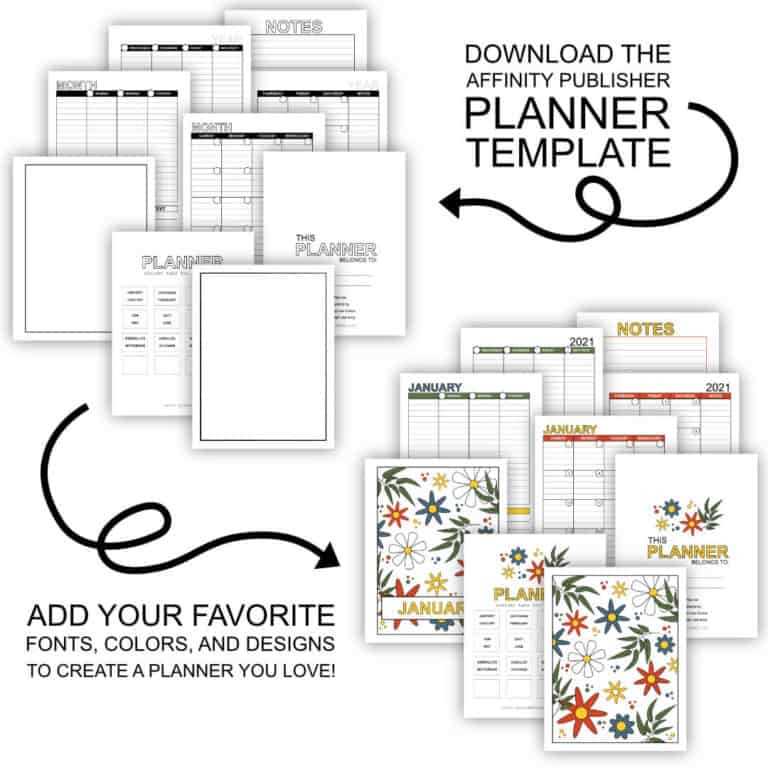
Use high-resolution images to maintain quality when printed. Aim for 300 DPI (dots per inch) for crisp results. Low-resolution images (72 DPI) may appear pixelated or blurry in the final print. Always check the resolution of images before including them in your design.
When adding images, consider their placement and alignment. Keep key visuals near the top or center of the page for emphasis, and avoid overcrowding the layout. Leave enough space around images to let the design breathe and to prevent a cluttered look.
For logos, illustrations, or other vector-based graphics, use scalable formats like SVG or EPS. These formats allow for resizing without loss of quality, unlike raster images (JPEG, PNG), which can become distorted when stretched. This ensures your graphics will stay sharp at any size.
Make sure the colors in your graphics complement the overall design. For consistency, try to use a limited color palette that matches your text and background. Avoid overly bright or distracting colors that could overpower the main content of the document.