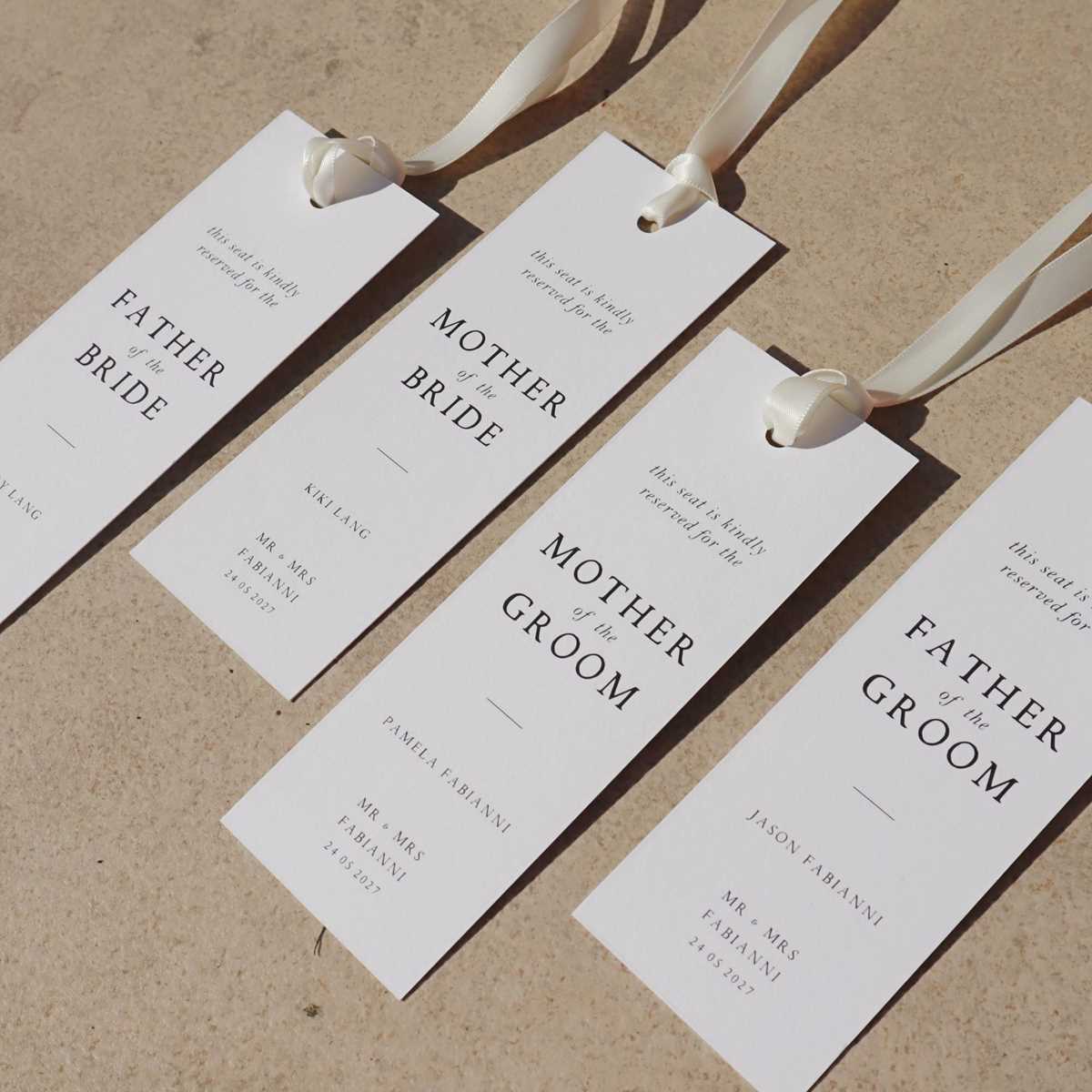
For events or settings requiring clear identification of seating, creating personalized markers for each participant is highly practical. Designing these labels efficiently saves time and prevents confusion during gatherings. These customizable options can be tailored to various designs and formats, ensuring that each attendee has a clear and distinct marker.
When producing these items, focus on clarity and readability. Consider using bold fonts for names, and include distinctive colors or patterns that match the theme. For best results, ensure the labels are appropriately sized to be visible from a distance but not overly large, as they should remain unobtrusive.
Using digital templates to generate these elements provides flexibility. You can easily modify the text and formatting based on specific needs, whether it’s for a casual event or a formal gathering. Once the designs are finalized, printing them becomes a quick and simple task, ready to be placed at each seat for immediate use.
Custom Seating Labels for Events
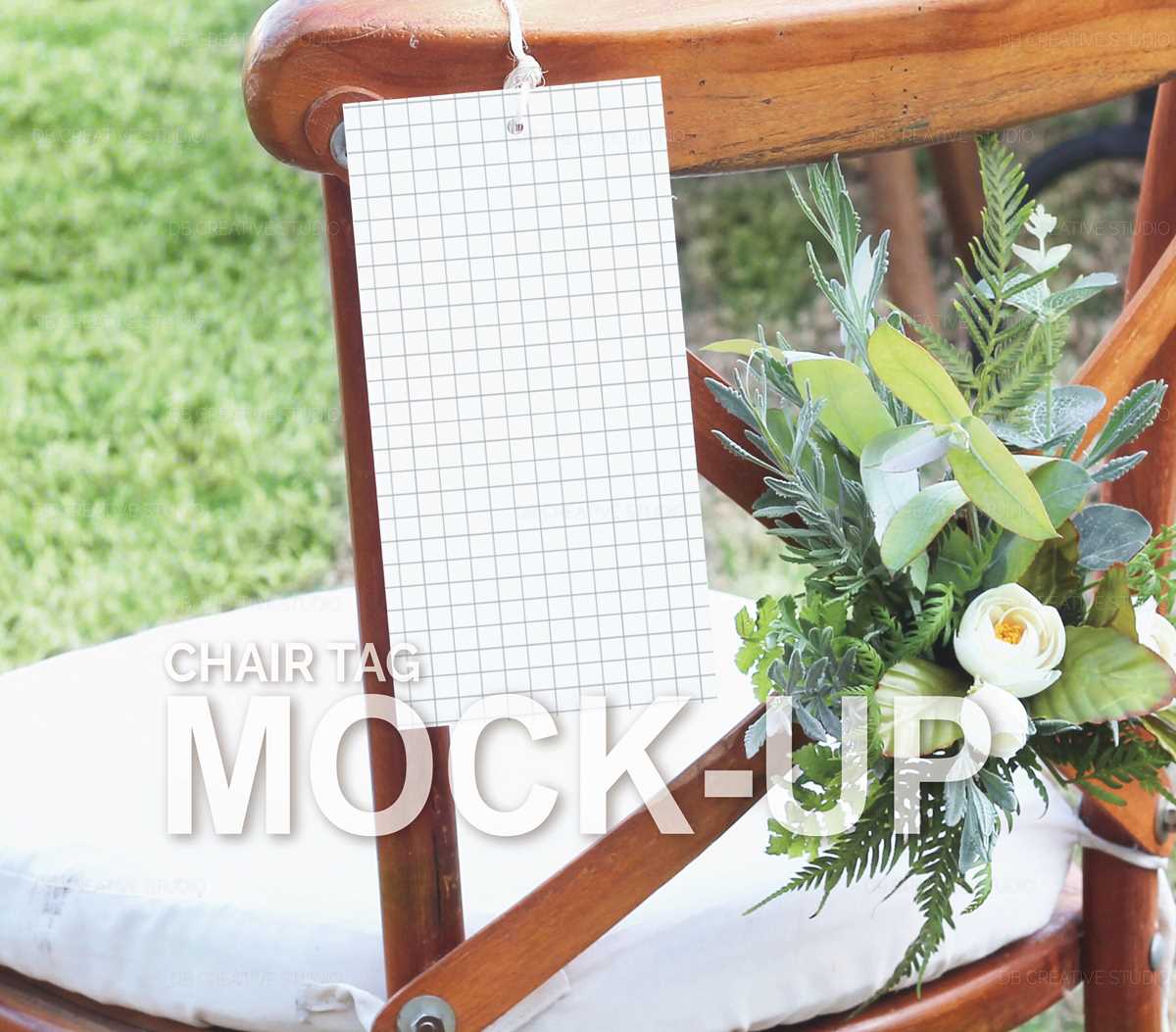
For organized seating arrangements, creating customized labels for each individual’s spot can simplify event coordination. Use an editable template to easily input names and print them in bulk, ensuring a smooth check-in process. These personalized placeholders can help guests find their designated area quickly without confusion.
Choosing a consistent layout is key. A simple yet elegant font paired with clear headings ensures readability. Select fonts that are legible even from a distance and make sure to keep text size consistent across all labels. Avoid overcrowding the design with unnecessary details–simplicity often leads to a more professional appearance.
Opt for a durable material when printing. Glossy or laminated finishes can withstand handling and are more likely to maintain a neat look throughout the event. Consider card stock or adhesive-backed paper, which can be attached directly to seats or other surfaces.
It’s crucial to customize the design based on the event’s theme. Matching the color palette and aesthetic of the space can enhance the overall experience, making the seating arrangements feel integrated into the environment. For example, a formal dinner might use elegant gold or silver lettering, while a more casual gathering could have brighter, playful hues.
If the event has numerous attendees, grouping labels by categories (e.g., VIP, general seating, etc.) can streamline placement. Using a different color for each group will help guests easily identify their designated spots, improving flow and minimizing confusion.
For smaller gatherings, opt for a unique design for each label to make the experience feel more personal. You can include additional information, like the person’s title or a small graphic that represents their role or interests. This adds an extra layer of customization and can serve as a conversation starter.
Make sure your template allows for easy adjustments. Whether it’s a change in name or position, you should be able to update and print new ones without hassle. Many design tools offer pre-made templates that can be quickly edited to meet specific needs.
After printing, review all labels for any potential errors. Ensure that each name or identifier is spelled correctly and positioned properly before distribution. Taking this step prevents unnecessary last-minute corrections that could cause delays during the event.
HTML
How to Design Custom Seating Identification Cards for Events
To create visually appealing seating identifiers, prioritize readability and personalization. Choose fonts that are large enough to read from a distance, especially for large venues. Bold and sans-serif options like Arial or Helvetica often work best. Utilize a color scheme that matches your event’s theme, while ensuring that the text contrasts with the background for clarity. If you want to add a unique touch, consider including the attendee’s organization or role beneath their name, giving the labels a more professional feel.
Use software like Adobe Illustrator or Canva to design your layouts. Keep the design simple, avoiding clutter. For an organized format, opt for a grid layout where each name is clearly separated, either in a single or double-column style depending on available space. When printing, ensure the size of each card corresponds to the chair’s width, allowing for a seamless fit. If you’re creating a high volume of these, templates are an efficient tool to help save time.
Choosing the Right Materials for Custom Badge Displays
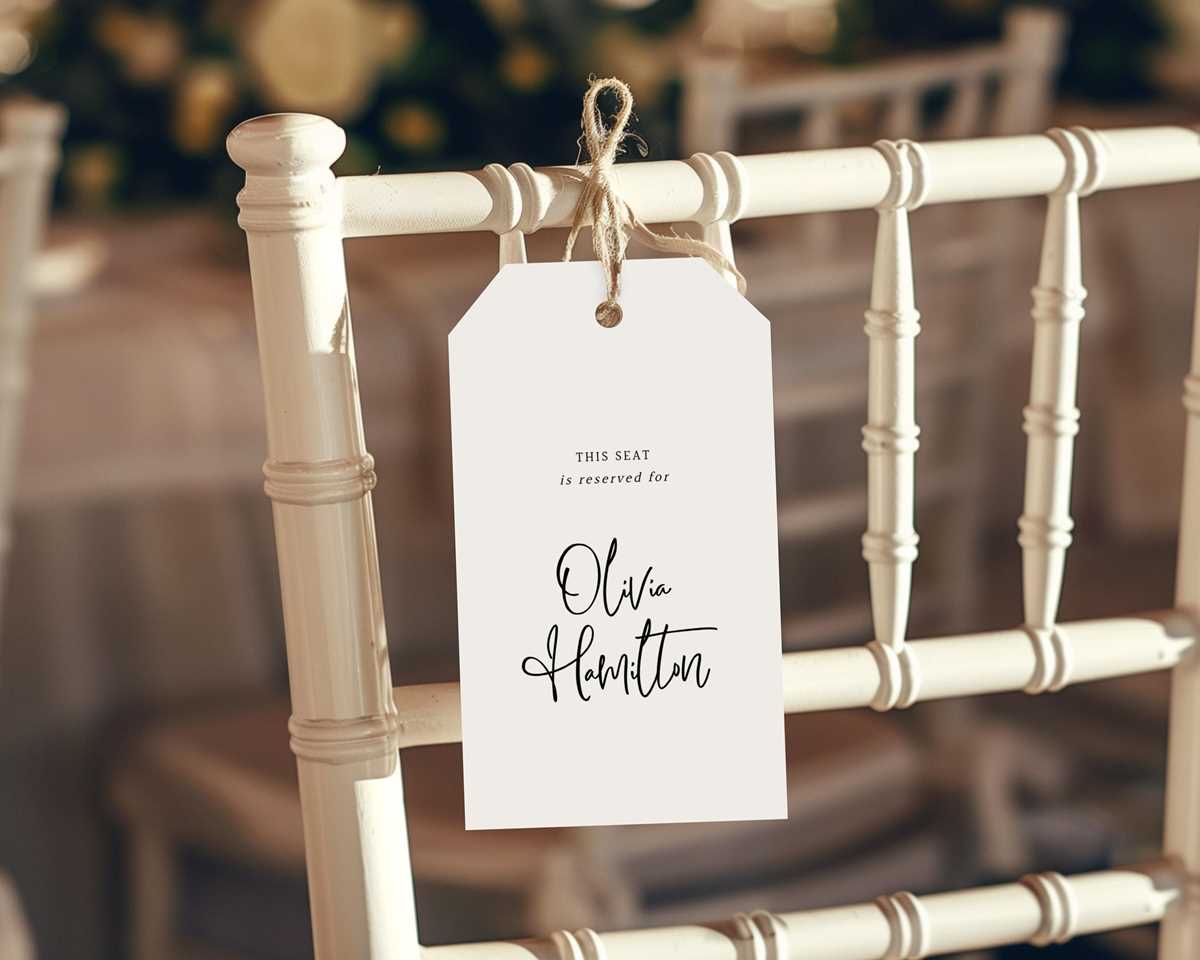
For clear and durable displays, opt for cardstock with a weight of at least 180gsm. This thickness provides sturdiness without feeling overly rigid, ensuring comfort for those wearing it for extended periods. Lighter materials, such as 120gsm paper, may curl and tear more easily under wear or humidity.
Laminate your creations with a glossy or matte finish for a sleek, polished look. Laminating offers additional protection from spills, dirt, and moisture, extending the lifespan of your items. For a more eco-conscious option, consider biodegradable lamination films or opt for reusable badge holders instead.
When the design requires vibrant colors, using high-quality photo paper is recommended. It provides richer color contrast, ensuring that printed visuals appear sharp and vivid. However, be aware that photo paper can be prone to smudging if it isn’t handled carefully after printing.
If the badges need to be flexible or adaptable, vinyl is a great material choice. It’s waterproof, tear-resistant, and more durable than paper options. This makes it especially suitable for outdoor events or areas where the badges may face exposure to the elements.
For temporary displays, adhesive-backed materials can be a practical option. These materials offer easy stick-and-remove functionality without damaging surfaces. Look for removable adhesive labels that leave no residue when peeled off.
Another option to consider is synthetic fabric, which provides a soft yet sturdy alternative. The fabric is great for both professional settings and casual events, especially if your design includes intricate patterns or embroidery. It’s also breathable, preventing discomfort during long-term wear.
Ensure the material is compatible with the printer you plan to use. Inkjet printers work best with glossy photo paper and most types of cardstock, while laser printers excel with matte or coated options. Always test a small batch to confirm print quality and adhesion to the material.
For a premium feel, consider using textured papers such as linen or felt. These materials elevate the design and make a lasting impression, ideal for high-end corporate events or elegant gatherings where presentation matters just as much as function.
Best Software for Creating Custom Placeholders for Events
Canva is a simple yet powerful tool for crafting event placeholders. It offers intuitive drag-and-drop functionality, a vast collection of templates, and a variety of fonts, icons, and design elements. With its user-friendly interface, even beginners can produce high-quality designs within minutes. Plus, Canva allows you to export your work in various formats, including PDFs and image files, perfect for printing or sharing online.
Microsoft Word remains a solid option for anyone looking for precision and control over their designs. The software provides a variety of pre-designed templates tailored for events. It allows you to easily adjust fonts, colors, and layouts. You can also make use of its advanced alignment tools to ensure everything is positioned perfectly before printing.
Adobe InDesign is ideal for professionals or those looking for more advanced customization. It’s packed with features like precise typography control and multi-page document creation. Though there’s a steeper learning curve, it’s a go-to for designers who need to manage large batches of designs for multiple users at once. InDesign’s integration with other Adobe tools also enhances its usability for complex projects.
Google Docs is a free alternative that works well for quick designs. While its design capabilities are more limited than others, it provides collaborative features that make it a great option for group projects or events requiring multiple contributors. You can work on the same document in real time, ensuring seamless teamwork in creating placeholders.
Labeljoy focuses specifically on creating label designs, making it a suitable choice for events requiring batch production. The software supports a wide range of printing options and offers tools to automate the creation of similar designs with minimal effort. It’s especially useful for creating standardized layouts that need to be consistent across numerous placeholders.
Visme is another versatile tool with a range of design options, including templates for event layouts. It includes animated graphics and charts for digital designs, which can be a great addition if you plan to share your creations online before printing. The software also has robust sharing and collaboration features, making it useful for teams working on the same project.
Printing Chair Name Tags at Home: Tips and Tricks
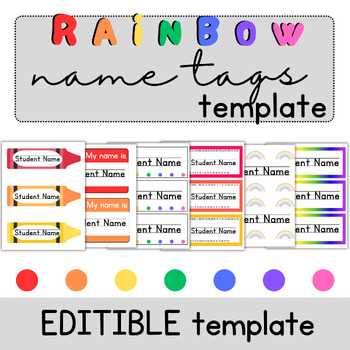
Use templates designed for specific sizes to ensure a perfect fit. Popular programs like Microsoft Word and Google Docs offer easy-to-use templates for different paper dimensions, like 2×4 inch or 3×5 inch. Search for these templates and download them to get started immediately.
Choose the right paper for printing. Avoid using standard printer paper, as it can look flimsy. Instead, opt for adhesive-backed sheets or thicker cardstock to ensure durability and ease of application to any surface.
Consider using a high-quality inkjet or laser printer for crisper text and sharp designs. If you don’t have access to these printers, many local print shops offer affordable options, especially for bulk printing. Just make sure to specify the paper type and weight for the best results.
Ensure the fonts are legible by testing different sizes. For most labels, a font size between 12pt and 18pt works best, depending on the amount of text. Fonts with clear lines, such as Arial or Helvetica, are recommended for better readability from a distance.
If you’re printing a large batch, opt for a print-and-cut method. Print the sheets first, then use scissors or a paper cutter for precision. For intricate designs, a cutting machine, like a Cricut, can make this process even faster and more accurate.
Double-check alignment before printing. Sometimes, the design may look fine on the screen, but it doesn’t line up properly on the paper. Do a quick test print on regular paper before using your expensive sheets to avoid wasting materials.
Finally, personalize each label with colors or logos to make them stand out. For a professional touch, use a program like Adobe Illustrator or Canva to add design elements like borders, icons, or gradient backgrounds that align with the event’s theme.